How to add a sticky add to cart button in Shopify
Switch on Horizon's sticky add to cart bar, or add one to Dawn with three files. Screenshots from a real store, and how to test it on revenue per visitor.

Rishi Babu
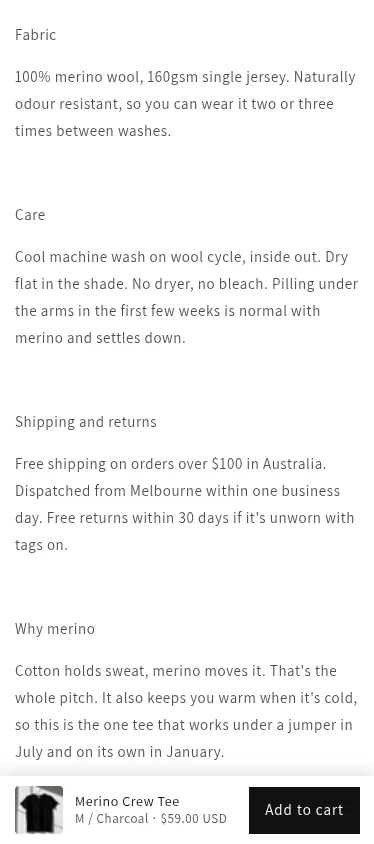
1. Check the theme before you paste anything
Look before you paste code. A theme's own bar matches your fonts and buttons, and it updates with the theme.
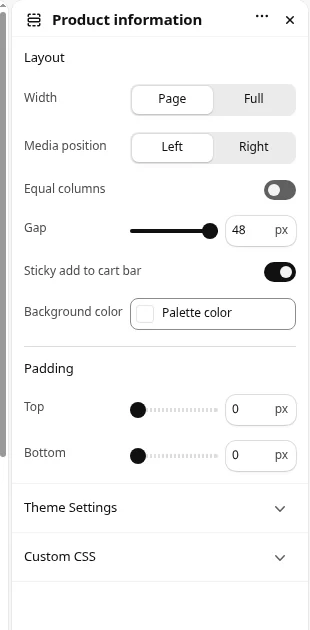
Open the editor on a product page and click the main product section. That section is Product information in both Horizon and Dawn. On a paid theme it is often labelled "Product page" or "Main product". Scan the settings for "sticky".
| Theme | Built-in sticky add to cart? | Where it lives |
|---|---|---|
| Horizon 3.2 and later | Yes, on by default | Product information, Sticky add to cart bar |
| Dawn 16.1.1 | No | Sticky content keeps the details beside the photos on desktop. Sticky header is a separate control |
| Paid themes | Often | The product section settings, and the theme's own docs |
Horizon's bar appears once the buy buttons scroll above the screen, hides at the footer, follows the selected variant, and stays out of the way while Shopify Inbox chat is open (Horizon's sticky bar, the Product information setting). It has no variant picker and no settings of its own. If that covers your store, close this tab and look at it on your phone.
On Dawn, or a theme built from Dawn, keep going.
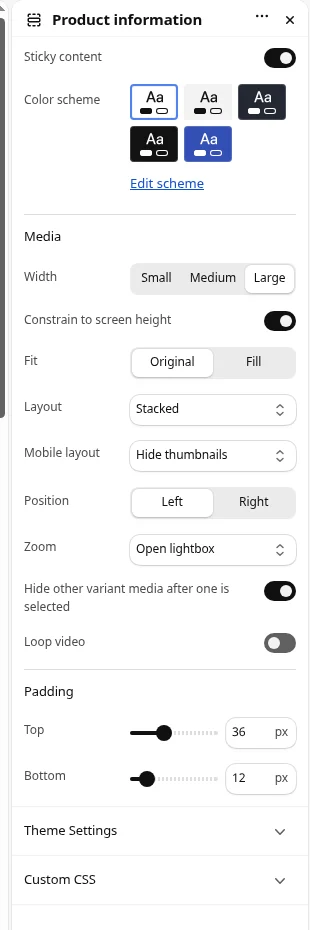
2. Duplicate the theme and open Edit code
Shopify's advice before a code edit is to duplicate the theme first (Editing theme code). You work on the copy. The live theme keeps selling while you break things.
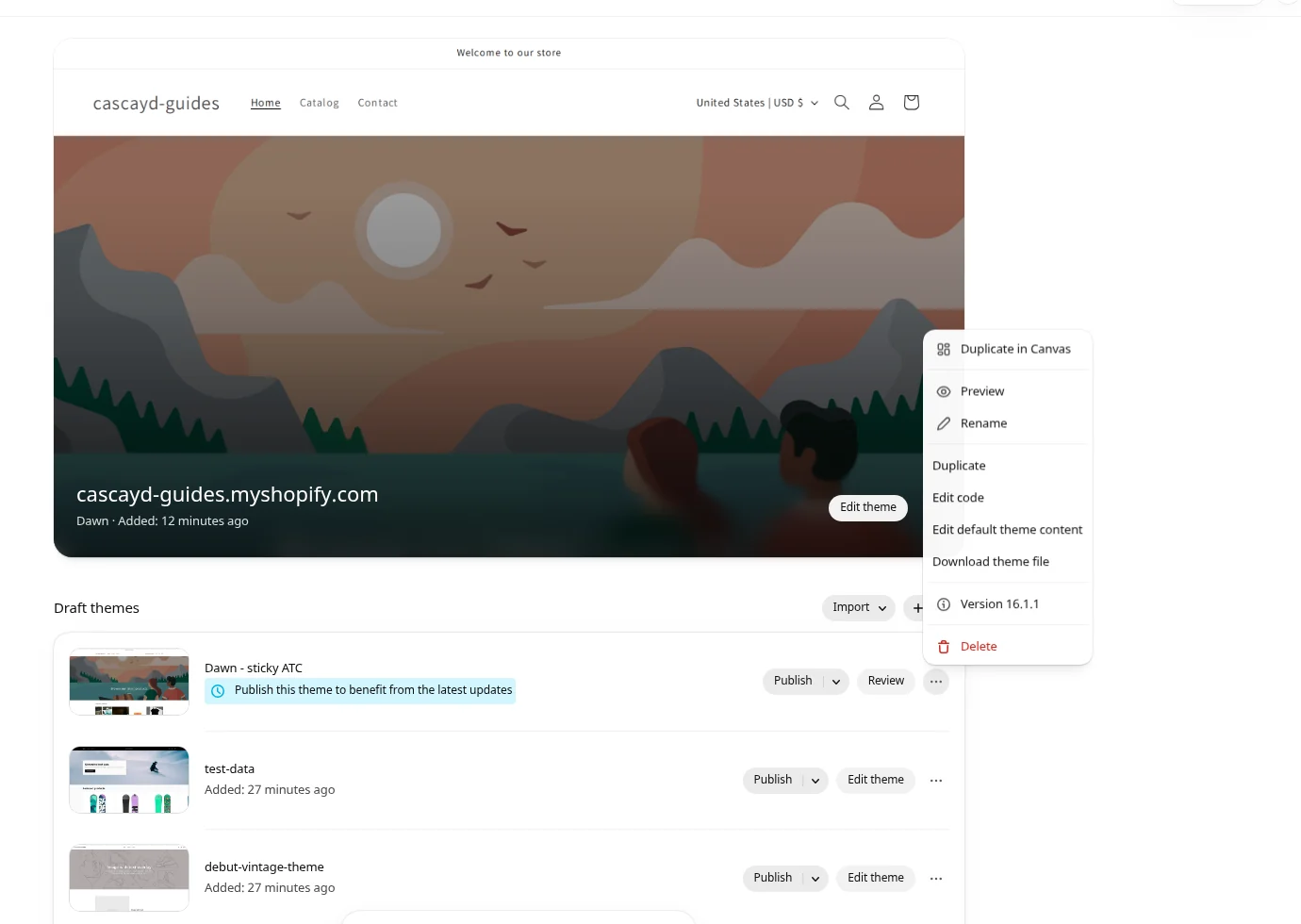
Duplicate the live theme.
- In the Shopify admin, go to Online Store > Themes.
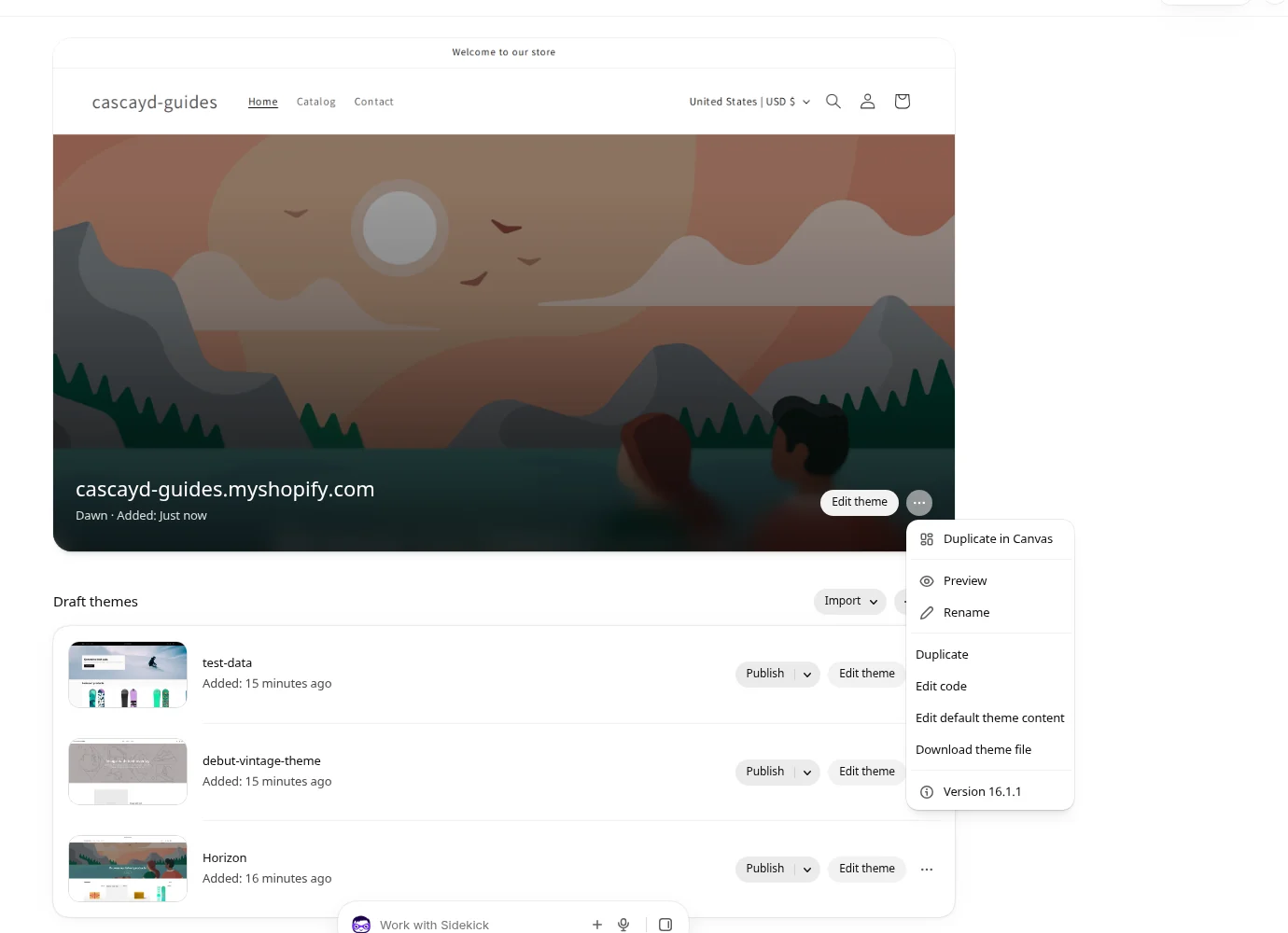
- On the current theme, click .... The menu lists Duplicate in Canvas and Duplicate. Choose Duplicate. Duplicate in Canvas opens a Canvas copy, and Canvas is a different editor. This guide uses the theme code editor (Duplicating themes).
- The copy lands under Draft themes, usually as Copy of Dawn. Click ... > Rename and call it
Dawn - sticky ATC.
Basic, Grow and Advanced stores can hold 20 themes. Plus can hold 100 (Adding themes). If the library is full of seasonal copies, delete one before you duplicate.
Open Edit code on the copy.
On Dawn - sticky ATC, still under Draft themes, click ... > Edit code. The editor is a file explorer: layout, templates, sections, snippets, assets and the rest.
3. Add three files to the Dawn copy
You create three new files and edit none of Dawn's own. That matters the next time Dawn ships an update. Shopify can apply code changes that clash with edits inside existing files (Editing theme code). New files are easy to copy onto the updated theme. Edits buried in main-product.liquid are not.
How the bar behaves:
- It's a section, so you switch it on per product template.
- Its button presses Dawn's real Add to cart button. The variant, the quantity, the cart drawer or popup, and Dawn's error messages all behave the way they do now.
- It watches the real button and only shows once that button has scrolled off the top of the screen. It hides again when the footer comes into view.
- It copies the real button's label, so a sold-out variant shows Sold out and can't be tapped.
- It's fixed to the bottom and moved with a CSS transform, so it never pushes the page around. On desktop it's a centered card, which leaves both bottom corners free for chat buttons.
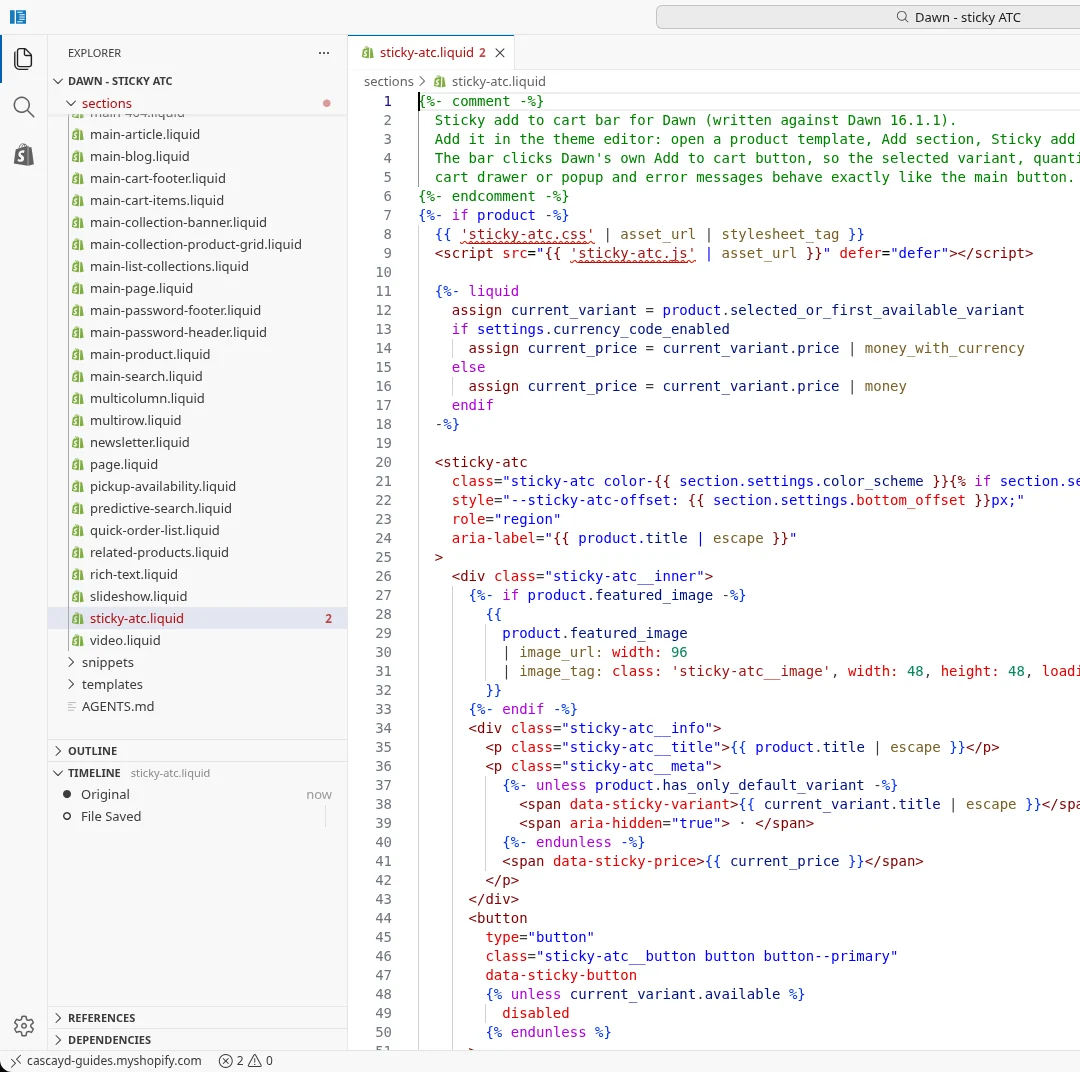
The section file.
- In the explorer, select the sections folder and click the New file icon. You can also right-click the folder and choose New file.
- Name it
sticky-atc.liquid. - Paste the code below and save. The timeline should read File Saved.
{%- comment -%}
  Sticky add to cart bar for Dawn (written against Dawn 16.1.1).
  Add it in the theme editor: open a product template, Add section, Sticky add to cart.
  The bar clicks Dawn's own Add to cart button, so the selected variant, quantity,
  cart drawer or popup and error messages behave exactly like the main button.
{%- endcomment -%}
{%- if product -%}
  {{ 'sticky-atc.css' | asset_url | stylesheet_tag }}
  <script src="{{ 'sticky-atc.js' | asset_url }}" defer="defer"></script>

  {%- liquid
    assign current_variant = product.selected_or_first_available_variant
    if settings.currency_code_enabled
      assign current_price = current_variant.price | money_with_currency
    else
      assign current_price = current_variant.price | money
    endif
  -%}

  <sticky-atc
    class="sticky-atc color-{{ section.settings.color_scheme }}{% if section.settings.mobile_only %} sticky-atc--mobile-only{% endif %}"
    style="--sticky-atc-offset: {{ section.settings.bottom_offset }}px;"
    role="region"
    aria-label="{{ product.title | escape }}"
  >
    <div class="sticky-atc__inner">
      {%- if product.featured_image -%}
        {{
          product.featured_image
          | image_url: width: 96
          | image_tag: class: 'sticky-atc__image', width: 48, height: 48, loading: 'lazy', alt: ''
        }}
      {%- endif -%}
      <div class="sticky-atc__info">
        <p class="sticky-atc__title">{{ product.title | escape }}</p>
        <p class="sticky-atc__meta">
          {%- unless product.has_only_default_variant -%}
            <span data-sticky-variant>{{ current_variant.title | escape }}</span>
            <span aria-hidden="true"> · </span>
          {%- endunless -%}
          <span data-sticky-price>{{ current_price }}</span>
        </p>
      </div>
      <button
        type="button"
        class="sticky-atc__button button button--primary"
        data-sticky-button
        {% unless current_variant.available %}
          disabled
        {% endunless %}
      >
        {%- if current_variant.available -%}
          {{ 'products.product.add_to_cart' | t }}
        {%- else -%}
          {{ 'products.product.sold_out' | t }}
        {%- endif -%}
      </button>
    </div>
  </sticky-atc>
{%- endif -%}

{% schema %}
{
  "name": "Sticky add to cart",
  "enabled_on": {
    "templates": ["product"]
  },
  "settings": [
    {
      "type": "checkbox",
      "id": "mobile_only",
      "label": "Show on mobile only",
      "default": false
    },
    {
      "type": "range",
      "id": "bottom_offset",
      "label": "Lift the bar off the bottom",
      "info": "Use this if a chat or cookie button sits under the bar.",
      "min": 0,
      "max": 120,
      "step": 4,
      "unit": "px",
      "default": 0
    },
    {
      "type": "color_scheme",
      "id": "color_scheme",
      "label": "Color scheme",
      "default": "scheme-1"
    }
  ],
  "presets": [
    {
      "name": "Sticky add to cart"
    }
  ]
}
{% endschema %}
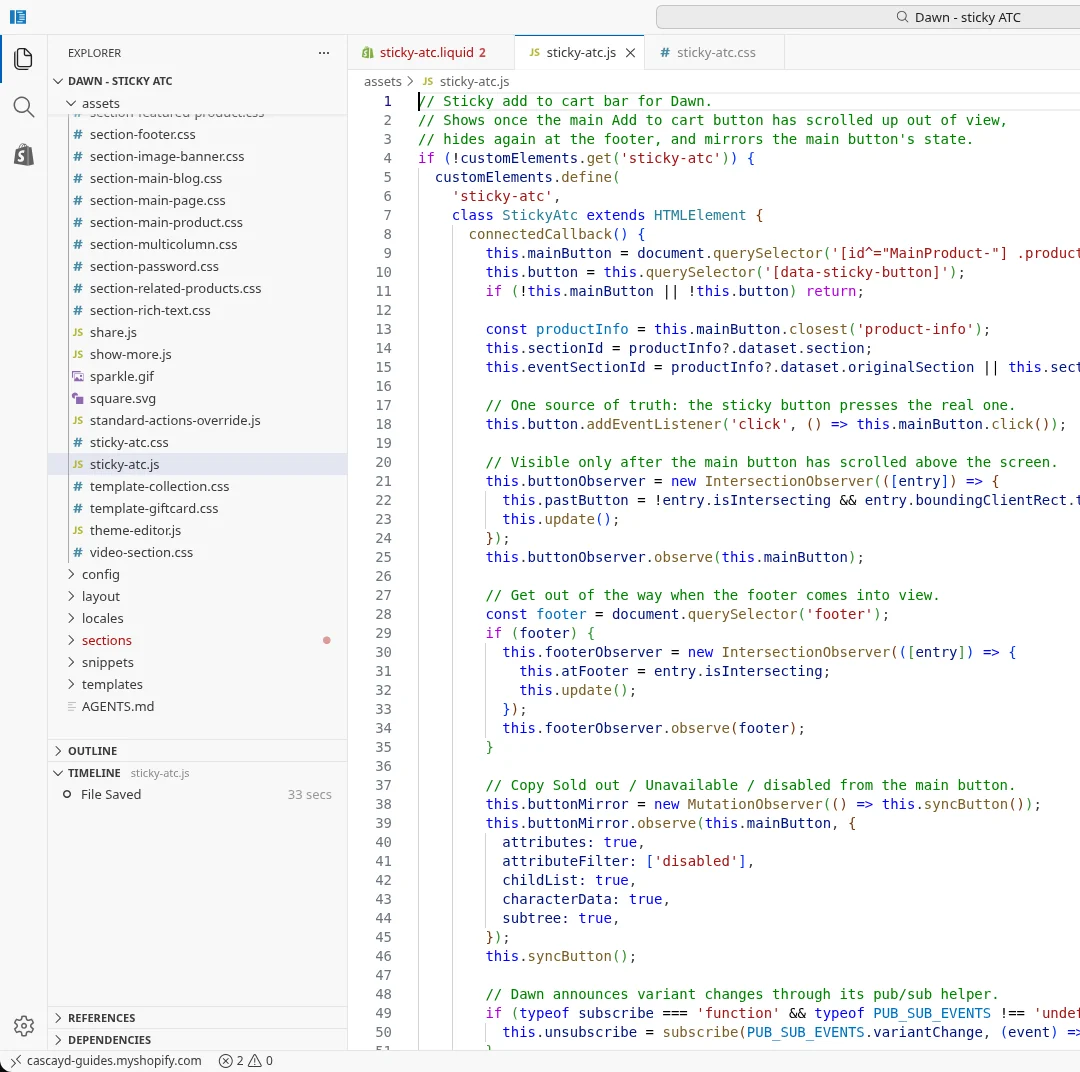
The JavaScript and the CSS.
- Select the assets folder, click New file, name it
sticky-atc.js, paste the script below and save. - Do the same for
sticky-atc.css.
// Sticky add to cart bar for Dawn.
// Shows once the main Add to cart button has scrolled up out of view,
// hides again at the footer, and mirrors the main button's state.
if (!customElements.get('sticky-atc')) {
  customElements.define(
    'sticky-atc',
    class StickyAtc extends HTMLElement {
      connectedCallback() {
        this.mainButton = document.querySelector('[id^="MainProduct-"] .product-form__submit');
        this.button = this.querySelector('[data-sticky-button]');
        if (!this.mainButton || !this.button) return;

        const productInfo = this.mainButton.closest('product-info');
        this.sectionId = productInfo?.dataset.section;
        this.eventSectionId = productInfo?.dataset.originalSection || this.sectionId;

        // One source of truth: the sticky button presses the real one.
        this.button.addEventListener('click', () => this.mainButton.click());

        // Visible only after the main button has scrolled above the screen.
        this.buttonObserver = new IntersectionObserver(([entry]) => {
          this.pastButton = !entry.isIntersecting && entry.boundingClientRect.top < 0;
          this.update();
        });
        this.buttonObserver.observe(this.mainButton);

        // Get out of the way when the footer comes into view.
        const footer = document.querySelector('footer');
        if (footer) {
          this.footerObserver = new IntersectionObserver(([entry]) => {
            this.atFooter = entry.isIntersecting;
            this.update();
          });
          this.footerObserver.observe(footer);
        }

        // Copy Sold out / Unavailable / disabled from the main button.
        this.buttonMirror = new MutationObserver(() => this.syncButton());
        this.buttonMirror.observe(this.mainButton, {
          attributes: true,
          attributeFilter: ['disabled'],
          childList: true,
          characterData: true,
          subtree: true,
        });
        this.syncButton();

        // Dawn announces variant changes through its pub/sub helper.
        if (typeof subscribe === 'function' && typeof PUB_SUB_EVENTS !== 'undefined') {
          this.unsubscribe = subscribe(PUB_SUB_EVENTS.variantChange, (event) => this.onVariantChange(event));
        }
      }

      disconnectedCallback() {
        this.buttonObserver?.disconnect();
        this.footerObserver?.disconnect();
        this.buttonMirror?.disconnect();
        this.unsubscribe?.();
      }

      update() {
        this.classList.toggle('is-visible', Boolean(this.pastButton && !this.atFooter));
      }

      syncButton() {
        const label = this.mainButton.querySelector('span')?.textContent.trim();
        this.button.disabled = this.mainButton.hasAttribute('disabled');
        if (label) this.button.textContent = label;
      }

      onVariantChange({ data }) {
        if (!data || data.sectionId !== this.eventSectionId) return;

        const variantLabel = this.querySelector('[data-sticky-variant]');
        if (variantLabel && data.variant) variantLabel.textContent = data.variant.title;

        // Dawn has already swapped in the new price by the time this runs.
        const price = document.getElementById(`price-${this.sectionId}`);
        const onSale = price?.querySelector('.price--on-sale');
        const amount = price?.querySelector(onSale ? '.price-item--sale' : '.price__regular span.price-item--regular');
        const stickyPrice = this.querySelector('[data-sticky-price]');
        if (amount && stickyPrice) stickyPrice.textContent = amount.textContent.trim();
      }
    }
  );
}
/* Sticky add to cart bar for Dawn. Fixed and moved with transform, so it never shifts the page layout. */
.sticky-atc {
  position: fixed;
  left: 0;
  right: 0;
  bottom: var(--sticky-atc-offset, 0px);
  z-index: 4; /* above page content, below Dawn's cart drawer and modals */
  padding: 1rem 1.5rem calc(1rem + env(safe-area-inset-bottom, 0px));
  background: rgb(var(--color-background));
  color: rgb(var(--color-foreground));
  box-shadow: 0 -0.4rem 1.6rem rgba(var(--color-shadow), 0.12);
  transform: translateY(calc(100% + var(--sticky-atc-offset, 0px)));
  visibility: hidden;
  transition: transform 0.25s ease, visibility 0s linear 0.25s;
}

.sticky-atc.is-visible {
  transform: translateY(0);
  visibility: visible;
  transition: transform 0.25s ease;
}

.sticky-atc__inner {
  display: flex;
  align-items: center;
  gap: 1.2rem;
}

.sticky-atc__image {
  flex-shrink: 0;
  width: 4.8rem;
  height: 4.8rem;
  object-fit: cover;
  border-radius: 0.4rem;
}

.sticky-atc__info {
  flex: 1;
  min-width: 0;
}

.sticky-atc__title,
.sticky-atc__meta {
  margin: 0;
  overflow: hidden;
  white-space: nowrap;
  text-overflow: ellipsis;
  line-height: 1.3;
}

.sticky-atc__title {
  font-size: 1.4rem;
}

.sticky-atc__meta {
  display: flex;
  gap: 0.4rem;
  font-size: 1.3rem;
  color: rgba(var(--color-foreground), 0.75);
}

/* Long variant names get cut short; the price always shows in full. */
.sticky-atc__meta [data-sticky-variant] {
  min-width: 0;
  overflow: hidden;
  text-overflow: ellipsis;
}

.sticky-atc__meta [data-sticky-price] {
  flex-shrink: 0;
}

.sticky-atc__button {
  flex-shrink: 0;
  width: auto;
  min-width: 11rem;
  padding: 0 1.6rem;
}

@media screen and (min-width: 750px) {
  .sticky-atc__button {
    min-width: 14rem;
  }
}

@media screen and (min-width: 750px) {
  /* A centred card on desktop leaves both corners free for chat buttons. */
  .sticky-atc {
    left: 50%;
    right: auto;
    width: min(64rem, calc(100% - 4rem));
    bottom: calc(1.6rem + var(--sticky-atc-offset, 0px));
    padding: 1.2rem 1.6rem;
    border-radius: 1.2rem;
    transform: translate(-50%, calc(100% + 1.6rem + var(--sticky-atc-offset, 0px)));
  }

  .sticky-atc.is-visible {
    transform: translate(-50%, 0);
  }

  .sticky-atc--mobile-only {
    display: none;
  }
}

@media (prefers-reduced-motion: reduce) {
  .sticky-atc,
  .sticky-atc.is-visible {
    transition: none;
  }
}

@media print {
  .sticky-atc {
    display: none;
  }
}
A few choices in there you might change:
- Shows only after the button scrolls up. If the phone layout puts the button below a tall gallery, the bar stays hidden on first load. That's deliberate. On first load the shopper hasn't decided anything yet. To show the bar whenever the button is off screen in either direction, delete
&& entry.boundingClientRect.top < 0in the JavaScript. - No variant picker in the bar. It adds whatever is selected on the page and shows the variant name, so nobody adds the wrong size by accident. A picker in a bar this short gets cramped on a phone.
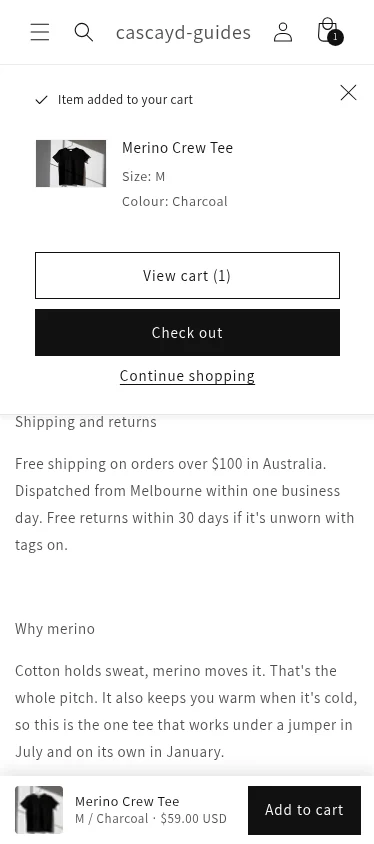
- The price stays visible. A long variant name is cut short. The price is not. On a 390px-wide phone,
M / Charcoalnext to$59.00 USDwas running into the button before that rule. - Sold out stays visible, and disabled. Someone who scrolled past the options can still see why the button does nothing.
4. Turn the bar on in the theme editor
The files do nothing until the section is on a product template.
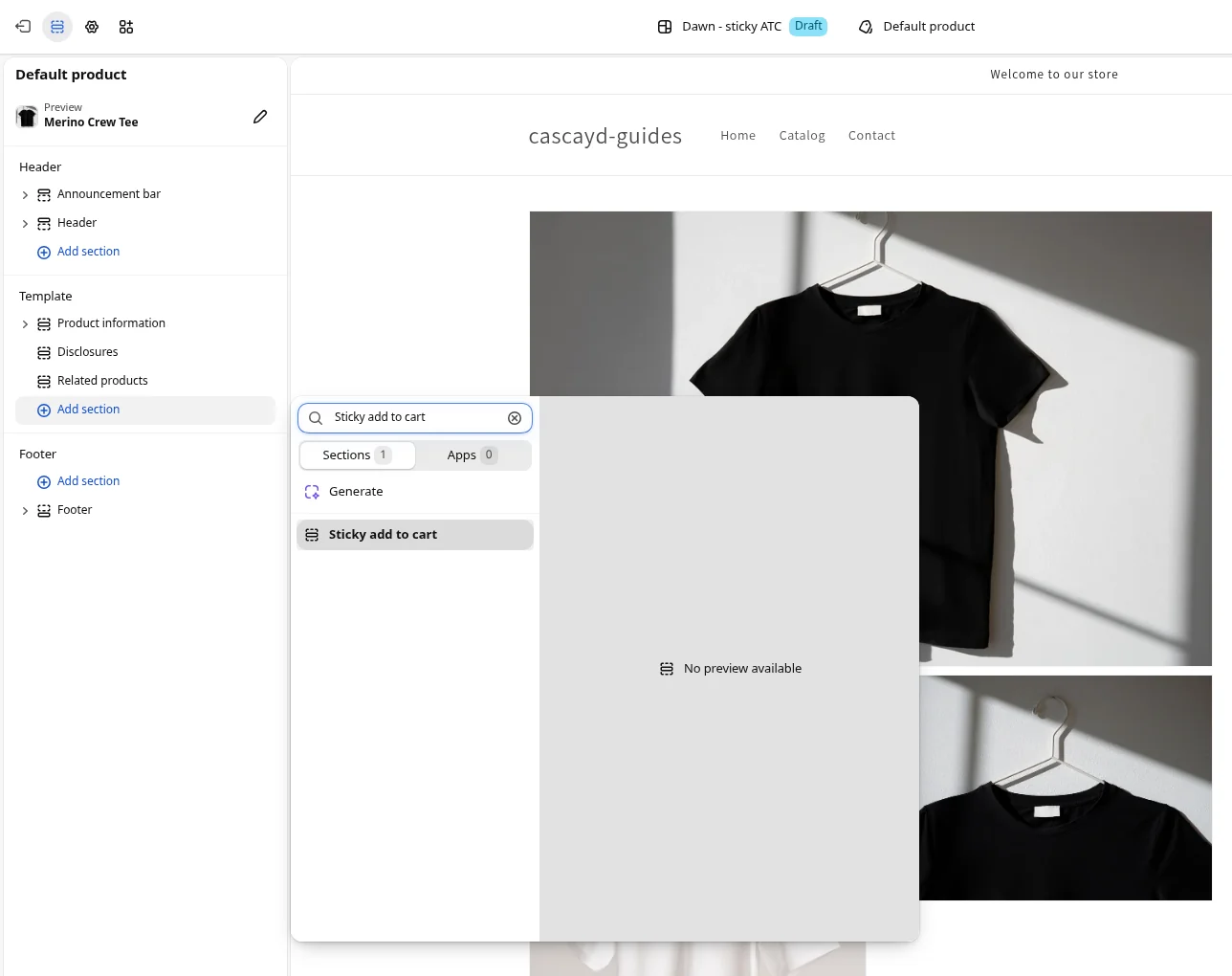
- On Online Store > Themes, click Edit theme on
Dawn - sticky ATC. - In the page selector at the top, choose Products > Default product. Use a product with variants as the preview, so you can see both button states.
- In the left sidebar, click Add section, search Sticky add to cart, and choose it. It only appears on product templates. The picker says No preview available. That's normal for this section.
If you sell from more than one product template, a product.bundle template for kits for example, repeat this on each one.
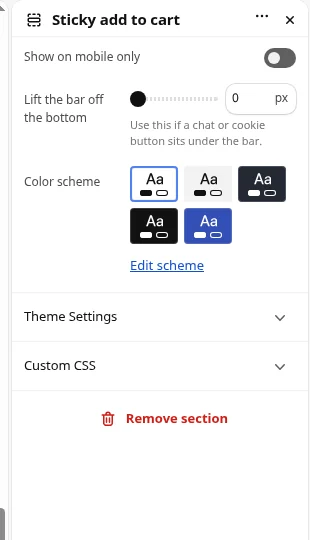
The section has three settings. In the schema the on/off control is type checkbox, and the editor draws it as a toggle.
- Show on mobile only. Switch it on if the desktop layout already keeps the button in view. Dawn's Sticky content setting does that beside the photos, so plenty of Dawn stores only want the bar on phones.
- Lift the bar off the bottom. If Shopify Inbox, Gorgias, Tidio or a cookie banner sits on the bottom edge, nudge the bar up until they stop overlapping. The note under the slider says to use it when a chat or cookie button sits under the bar.
- Color scheme. Pick the scheme your product page uses so the bar's button matches the main one. We left it on the first swatch.
Click Save.
5. Test the bar on your phone, then publish
Preview the draft from Online Store > Themes, then open that preview on your actual phone. DevTools device mode is fine for a first look. The phone in your pocket is where the home indicator and the chat bubble actually sit.
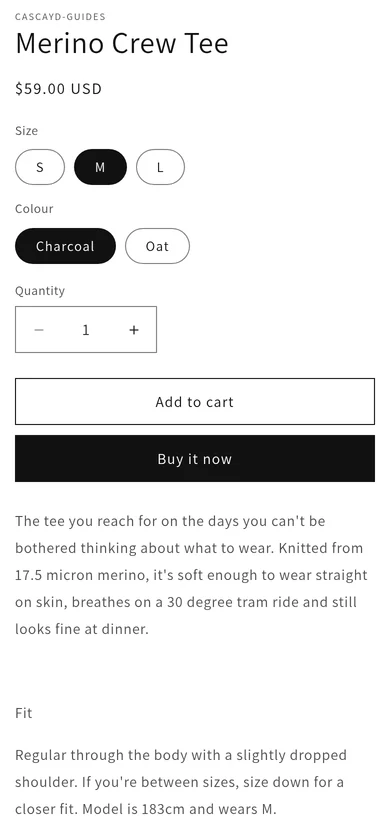
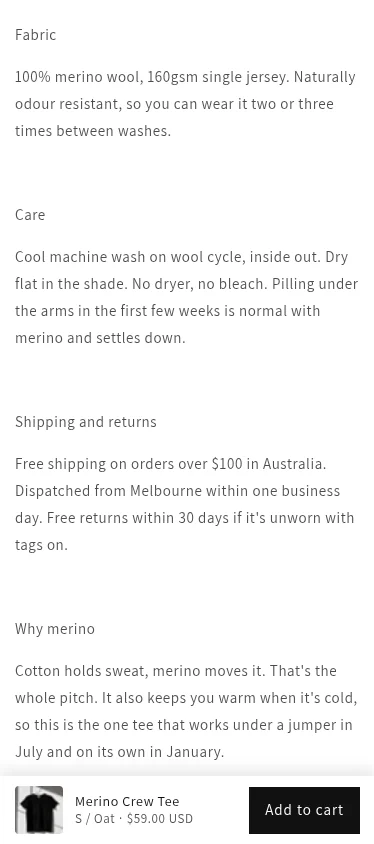
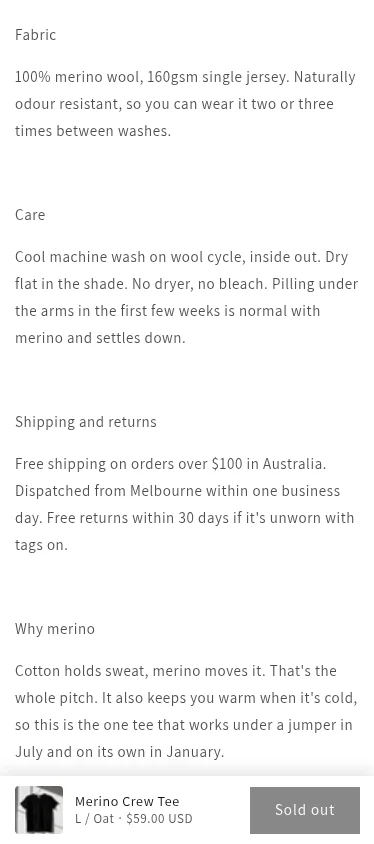
On a wide screen, Dawn's Sticky content keeps the real button beside the photos, so the bar often waits until you scroll past the product section, around where You may also like starts. That's the script doing what it says. Switch on Show on mobile only if you don't want the bar on desktop.
Run through this on a product with variants, and on one with none:
Publish the copy.
When every line checks out, go back to Online Store > Themes and click Publish on Dawn - sticky ATC. Until then it sits under Draft themes. The theme you replace moves into Draft themes too, so rolling back is publishing that one again.
Or leave the copy as a draft and test it against the live theme first. That's the last section.
6. When the bar doesn't show
Most misses come down to one of these:
| What you see | Likely cause | Fix |
|---|---|---|
| No bar at all | The section is not on the template this product uses | Check the product's Theme template in the admin, then add the section to that template |
| No bar, and the theme isn't Dawn | The script looks for Dawn's MainProduct- wrapper and .product-form__submit button | Change the selector on the first line of connectedCallback to your theme's main button |
| The bar only appears on desktop after a long scroll | Dawn's Sticky content keeps the real button in view beside the photos | Expected. Switch on Show on mobile only if you don't want the bar on desktop |
| The variant name doesn't update | A variant picker app replaced Dawn's picker and doesn't fire Dawn's events | Adding still works, because the bar presses the real button. Ask the app about Dawn's variant-change event |
| The bar sits on the chat button | The chat widget docks to the bottom edge on mobile | Raise Lift the bar off the bottom, or move the bubble in the chat app |
| The bar vanished after a theme update | The updated copy doesn't have the three files | Re-create the files on the updated copy and add the section again |
Sold out, while the admin still shows stock. We hit this while checking the bar. A variant can read Sold out on the storefront when the product page in admin still shows units available. Shopify only sells from locations that market ships from. Our tee had 20 at a custom location and 0 at Shop location, and the US market only shipped from Shop location, so M / Charcoal looked sold out until we added stock at Shop location. Shopify's help on selling when out of stock describes that case. In the product admin the toggle is labelled Sell when out of stock. Leave it off unless you actually want orders at zero.
7. Test whether the bar makes you money
A sticky bar is a bet that shoppers on a long mobile page will add without scrolling back up. Whether that makes more money is a separate question. More adds from people who weren't ready can mean the same number of orders and a busier cart. Judge it on revenue per visitor, with mobile add to cart rate and cart-to-checkout as the supporting numbers. The guide to raising add to cart rate and shopping cart optimization cover what happens either side of that button.
A clean test for this:
- Control: your current product page, no bar.
- Variant: the same page with the Sticky add to cart section added.
- Who: mobile visitors to product pages, split 50/50. Include desktop too if you're not using mobile only.
- Hypothesis: shoppers who scroll down for the size guide and the reviews add without scrolling back up, so revenue per mobile visitor goes up.
Set the rules before it starts:
If the result is flat, that's an answer too. It tells you shoppers on your pages weren't losing the button, and the next test should go after what they're actually stuck on, like sizing or delivery times. The Shopify product page optimization guide has more ideas for that page.
This is the kind of test Cascayd runs for Shopify stores. Our team does the research, the strategy and the creative design, and AI speeds up the build and the grunt work. Each test comes to you in Slack with the reasoning, and you approve it before it runs. We only charge when you make money. If you want your product pages tested and judged on revenue, book a call.
Product photos in these screenshots are from Pexels, under the Pexels License: Hanna Pad, dayong tien, Erik Mclean, Q. Hưng Phạm and Olha Ruskykh.