How to add metafields in Shopify and show them on product pages
Create a Shopify metafield, fill it in on products or in bulk, and show it on your product page in the theme editor with no code. Real screenshots.

Chirag Babu
Before you start
A metafield has two parts. The definition is the field itself: its name, its type and where it lives. You create it once. The value is what you type into it on each product.
Two quick checks save you a cleanup later:
- See whether a field already covers it. If the product has a category, Product metafields can already list category fields for it, such as fabric or care instructions on a tee. Use one of those when it fits.
- Choose the type carefully. You can change a definition's name, description and validation later. Shopify's help centre doesn't list the type as something you can edit, and after you save, the One dropdown next to the type is disabled. Pick the type and the count before you save.
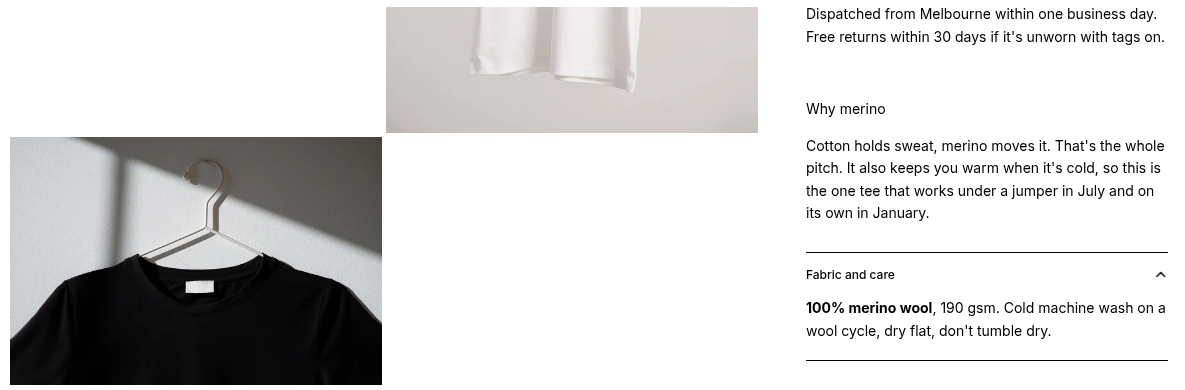
We're using Shopify's Horizon theme on a test store, with a field called "Fabric and care" on a merino tee and a canvas bag. The admin steps are the same in any theme. The theme editor steps differ a little in other themes.
Step 1: Create the metafield definition
1. Open the product metafield definitions
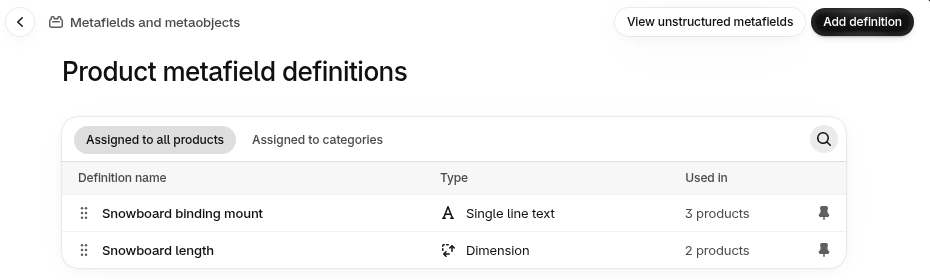
In your Shopify admin, go to Settings > Metafields and metaobjects. Under Metafields, click Products. The page is Product metafield definitions. You'll see the product fields you already have. Our test store had two from Shopify's sample data, for snowboards.
2. Add the definition
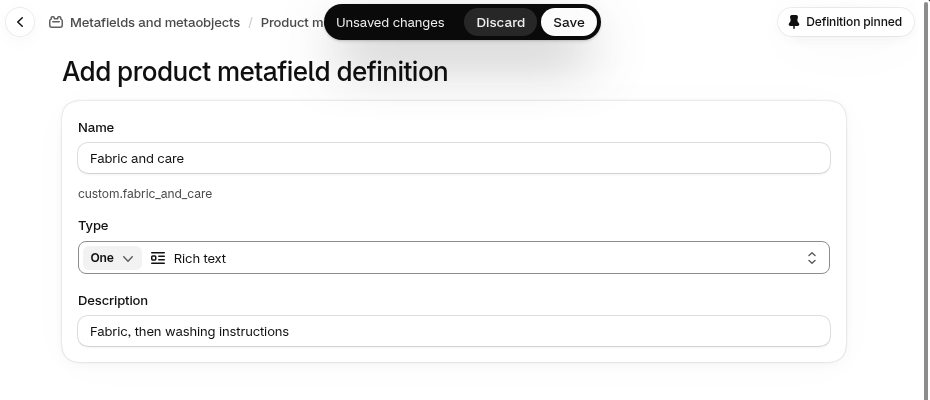
Click Add definition. The page is Add product metafield definition. Fill in:
- Name: Fabric and care. Shopify shows
custom.fabric_and_careunder the name. There is no separate namespace and key label. Leave that key unless your developer wants something else. - Description: optional, but a line like "Fabric, then washing instructions" helps whoever fills it in.
- Type: choose Rich text, so you can use bold and bullet points. The count beside the type is a One dropdown. Leave it on One.
Definition pinned sits at the top right. Leave it pinned so the field shows on the product in the admin. Further down the form, Options has a Storefront API access toggle, and Category assignments has Select categories if the field should only apply to some product categories. Rich text has no filter and no option to use the field as a collection condition.
Set One before you save. After saving, that dropdown is disabled. Then click Save.
Step 2: Fill in the values
3. Fill it in on one product
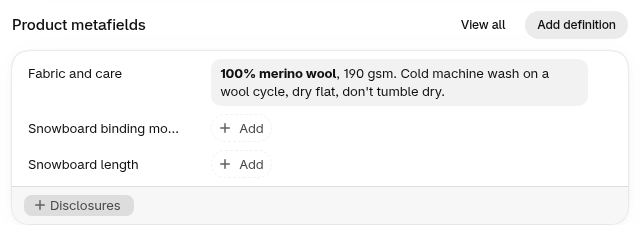
Go to Products and open a product. Scroll to the Product metafields card. Click Fabric and care, type the text and click Save at the top.
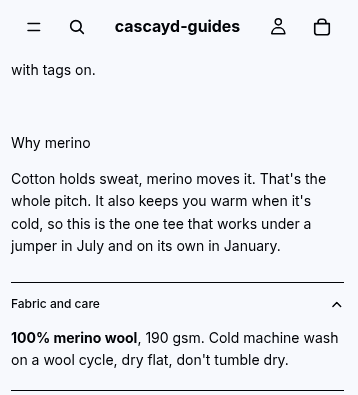
We wrote: "100% merino wool, 190 gsm. Cold machine wash on a wool cycle, dry flat, don't tumble dry." Bold works in this field.
4. Fill it in on many products at once
For more than a handful, use the bulk editor. On the Products page, tick the products, then click Bulk edit. Click Columns, find Fabric and care and tick it. A new column appears. Click a cell and type. A rich text cell here is plain text, with no bold or bullets. Click Save.

Step 3: Show it on the product page
5. Duplicate your theme and open the product template
Go to Online Store > Themes. On your theme, click ... > Duplicate, then rename the copy something like "Metafields test". Click Edit theme on the copy. At the top, switch the page selector from Home page to Products > Default product, and preview a product that has a value.
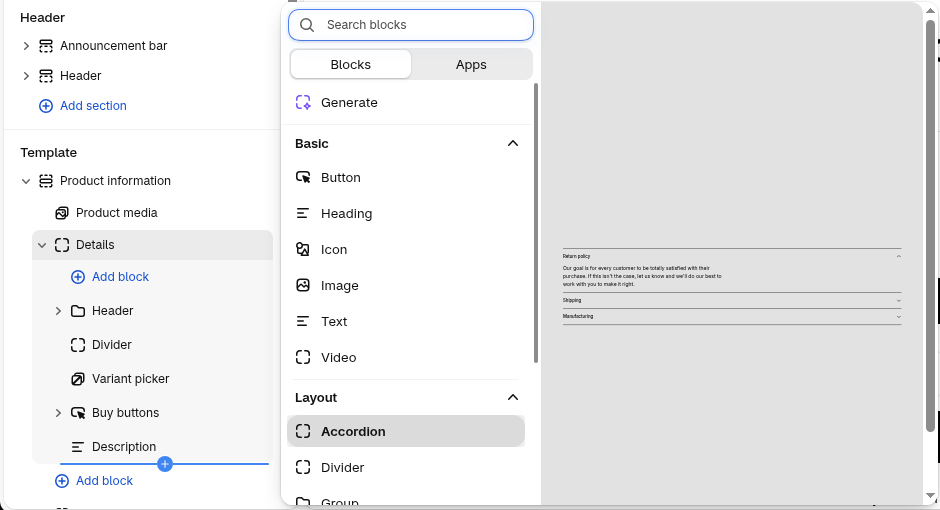
6. Add an Accordion under the description
In the sidebar, open Product information, then the Details group. Hover just below Description and click the + (Add block). Under Layout, choose Accordion.
A new Accordion in Horizon comes with three rows: Return policy, Shipping and Manufacturing. Return policy starts open, with its own text. Remove the two rows you won't use and keep one to rename.
7. Rename the row and connect the metafield
Click the remaining row and change its heading to "Fabric and care". If the row starts open and you want shoppers to expand it themselves, close it on the live page. We left it open here so the text is visible.
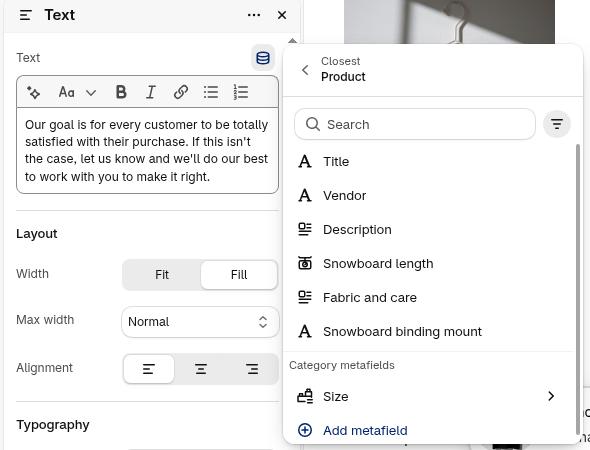
Click the Text block inside the row. Next to the Text setting, click the database icon. The menu opens on Closest, then Product, then your product metafields. Pick Fabric and care. The preview swaps in that product's text.
Click Save.

8. Check a product with a value, one without, and a phone
Switch the preview to a product that has no value. On our Horizon test, the Fabric and care heading still showed, and the content under it was empty. The row is part of the template. Only the text inside it comes from the metafield.
You've got two simple fixes:
- Fill it in everywhere. The bulk editor from step 4 makes that a ten-minute job.
- Use a separate template. Put the accordion only on a second product template and assign it to the products that have the field. The product page template guide shows how.
Then check the row in the phone preview, and open the copy's preview to see it on the storefront. When you're happy, publish the copy, or repeat the edits on your live theme.

What to know before you add more fields
Pick the type for how you'll use it. Some common ones:
| Type | Good for | Example |
|---|---|---|
| Single line text | A short fact | Origin: Made in Portugal |
| Rich text | Text with bold or bullets | Fabric and care |
| Integer or Decimal | A number you might filter on later | Burn time: 45 hours |
| Dimension, Weight or Volume | Measurements with a unit | Width: 60 cm |
| File | An image or PDF | A manual or spec sheet |
| Page | A link to a page you already have | A shared size chart |
The size chart guide uses a Page metafield, if that's what you need.
A few limits from Shopify's help centre and developer docs:
- Up to 256 metafield definitions per resource, such as products.
- Up to 50 pinned definitions per resource.
- A product template can use up to 100 dynamic sources in total, and one text setting up to 50.
- Deleting a definition can remove the values saved on every product. Shopify asks you to choose Delete field only or Delete field and its saved values. Unpin the definition instead if you only want it out of sight.
Metafields can also be filters on collection pages, but that needs Shopify's Search & Discovery app, so it's not covered here.
Make the product page answer the question
Most of the information people add as metafields is what shoppers ask support before they buy: will it shrink, how big is it, how long does it last. Putting it on the page in a tidy row answers that at the moment they're deciding.
Where it goes is worth testing. Cascayd tests page content, so a test might compare care and fabric details in a closed row under the description with the same details as two lines near the price, with everything else held constant. You'd judge it on revenue per visitor, not clicks on the row. The product page optimisation guide covers what else belongs near the buy button.
That's what we do: our team researches your store, designs the page content tests, and measures each one on real Shopify orders. AI speeds up the build and you approve every test in Slack. We only charge when you make money. If you'd like us to look at your product pages, book a call.