How to add an announcement bar in Shopify
Add a Shopify announcement bar in the theme editor: write the message, add a link, style it, rotate several messages and check it on mobile.

Will O'Brien

Before you start
Pick the message first. An announcement bar is one line at the top of every page, so it carries one fact a shopper would otherwise have to hunt for: a shipping offer, a delivery cutoff, a sale end date, a returns promise.
Check two things before you type it in:
- The message is true today. If the bar says "Free shipping over $100", your shipping rates or a discount must already do that. The free shipping guide shows how to set it up.
- You know which theme is live. The editor shows the same bar settings under slightly different names in different themes. We're using Shopify's Horizon theme. Shopify's Dawn theme is close, and we note the differences as we go.
Shopify's help centre also says some themes don't have a built-in announcement bar and need an app. If you don't see Announcement bar in step 2, check your theme's documentation before you install anything.
Add the announcement bar in six steps
1. Duplicate your theme and open the copy
In your Shopify admin go to Online Store > Themes. On the theme you use, click the ... button and choose Duplicate. While the copy is being made the card says "Copying your theme". Then click ... > Rename, call it something you'll recognise, such as "Announcement bar test", and click Save. The copy appears under Draft themes. Click Edit theme on it.
You're editing a copy, so nothing here shows to shoppers until you publish it.
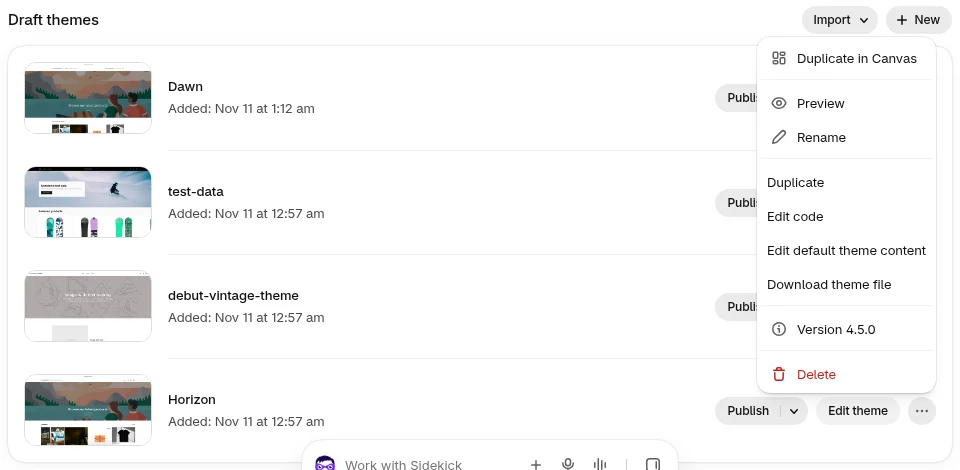

2. Find the Announcement bar
In the editor's left sidebar, the Header group sits at the top. Click Announcement bar inside it. A new Horizon theme already has one, with a block called "Announcement" that says "Welcome to our store".
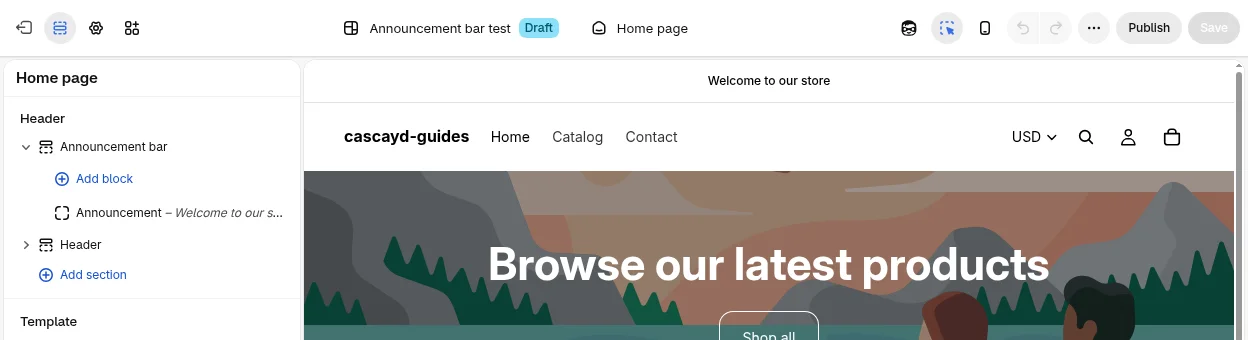
3. Add the announcement and set the link
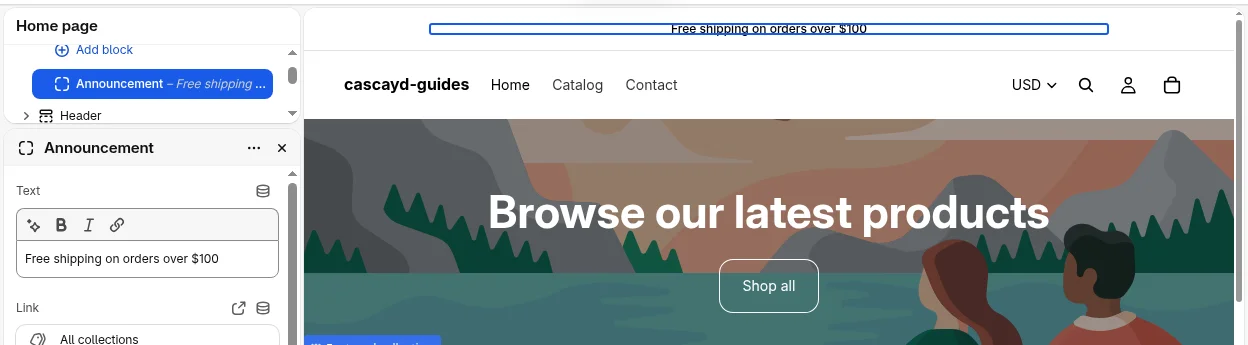
Under Announcement bar, click Add block and choose Announcement. The new block starts with the text "Shop our latest arrivals!". Click it and replace that in Text with your message. If shoppers should go somewhere when they click it, use Link: paste a URL, or search and pick one of your collections, products, pages, blogs or policies.
Keep it to one short line. We used "Free shipping on orders over $100".
Click Save at the top right. Shopify shows "Changes saved."
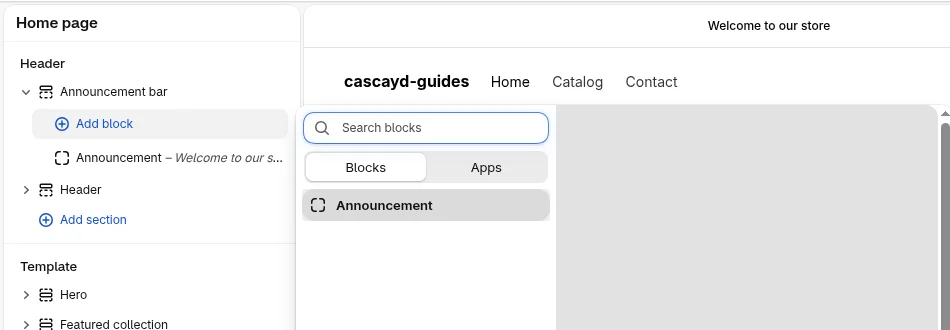
In Dawn the button is Add Announcement.
4. Style the bar
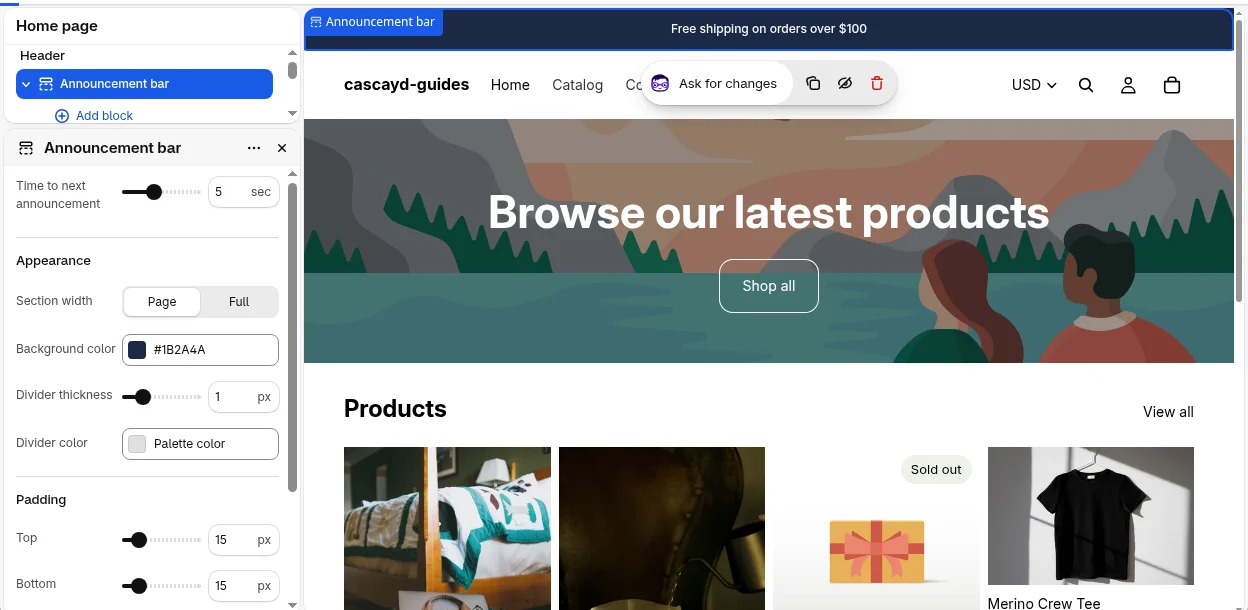
Click Announcement bar again to get the section settings. In Horizon you can change the Background color, the Padding at the top and bottom (0 to 100 px, 15 by default), whether the bar is Page or Full width, and the Divider thickness (0 to 5 px) and Divider color. Font, size and text colour sit on each announcement block.
Pick colours that match your header so the bar reads as part of the page. We set the background to navy (#1B2A4A) and the text turned white on its own. Check the text is still easy to read, because a bright background with light text is the usual miss.
5. Add a second message and check the rotation
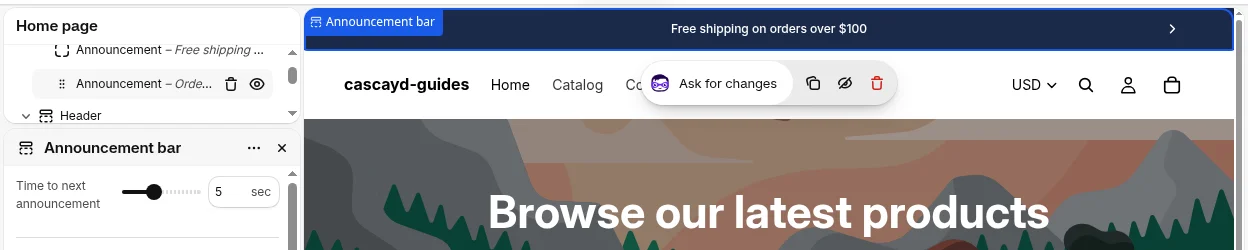
Click Add block > Announcement again and write the second message, for example "Order by 2pm for same-day dispatch". New blocks go to the top of the list, so drag the handle on a block to put them in the order you want.
With two or more announcements the bar fades from one to the next and shows left and right arrows so shoppers can step through them. With one announcement there are no arrows and no rotation. Set the pause with Time to next announcement, from 2 to 10 seconds (5 by default). Two or three messages is plenty.
In Dawn, tick Auto rotate announcements and set Change every.
6. Check it on a phone, then publish
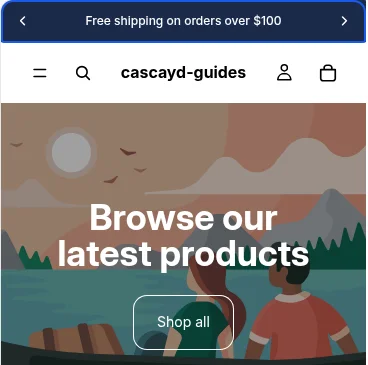
Click Enable mobile preview in the editor to see the bar on a phone. The bar keeps its arrows and a short message fits on one line. A long message (we tried 80 characters) wraps onto a second line and the bar grows taller, so trim it until it's tidy. Click the link and check it goes to the right page. Look at a product page and the cart page too, because the bar is part of the header and appears everywhere your header does.
To see it on the real storefront, click ... > Preview on the theme card. When you're happy, click Publish on the copy. If you'd rather keep your live theme, make the same edits on it and click Save.
What to know before you rely on it
- One bar, several messages. A theme has one announcement bar section. Shopify's help centre says Dawn allows up to 12 announcements. We added 14 in Horizon without an error, but two or three is what shoppers will read.
- It doesn't stay pinned. The bar scrolls out of view and the header stays. The header's Sticky header setting (Always, On scroll up or Never) controls the header, not the bar. If you want a message that follows the shopper, put it on the product page or in the cart, where the decision happens.
- Hide or delete. Hover over an announcement block and click the eye icon to hide it without deleting it. Click the block and Remove block to delete it.
- No segments or timers. The built-in bar shows the same text to everyone. If you need different messages by country or customer, that's an app or a custom build.


Make the first screen earn its place
An announcement bar is the first line a shopper reads, so the words matter. The useful question is whether the message and the page under it say the same thing: the bar promises free shipping over $100, and the product page and cart should show how close the shopper is to it.
Cascayd tests page content, so a test might compare how the offer is worded in the bar, whether the product page repeats it near the button, and whether the cart shows the gap to the threshold, with everything else held constant. The free shipping threshold guide walks through that kind of test and what to measure.
That's what we do: our team researches your store, designs the page content tests, and measures each one on real Shopify orders. AI speeds up the build and you approve every test in Slack. We only charge when you make money. If you'd like us to look at your store, book a call.