How to set up a free gift with purchase in Shopify
Set up a Shopify free gift with purchase using an automatic Buy X get Y discount: create the gift, set the spend, test the cart. Real admin screenshots.

Will O'Brien
Before you start
You need a product to give away. It can be something you sell already, or something you buy in just for this. Either way it has to be an Active product with stock, published to the Online Store, because Shopify treats the gift like any other item in the cart.
Check three things first:
- The gift's inventory. If the gift's stock hits zero, Shopify's help centre says it shows as sold out and shoppers can't get the offer. Count how many gifts you can afford to give.
- What the gift costs you. Fill in Cost on the gift product. A $18 tote that costs you $6 plus postage is a different offer from one that costs $14.
- Whether a gift is the right offer. A percentage off needs no extra stock and no photo. The last section covers testing the two against each other.
We're using a Linen Tote Bag as the gift, and the offer is "spend $100 on Merino Crew Tees, get a tote free". If you want to give away something that's also one of the products that count towards the spend, read step 3 first.
Set up the free gift in seven steps
1. Create the gift product
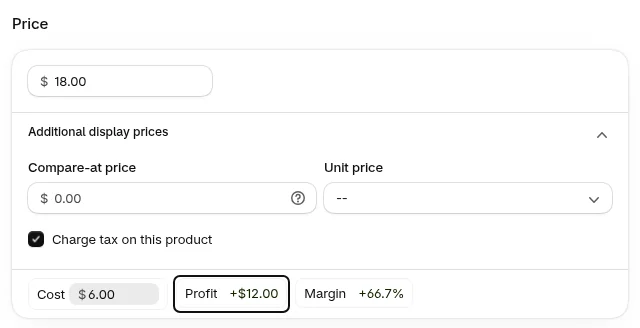
In your Shopify admin go to Products and click Add product. Name it Linen Tote Bag and set the price to $18.00. In the Price card, click Cost per item and enter $6.00 in the Cost field. Shopify then shows Profit (+$12.00) and Margin (+66.7%).
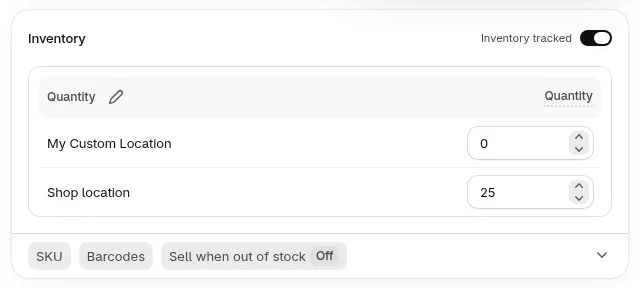
In the Inventory card, set 25 at your location. Leave Inventory tracked on, so the gift can't be given away past your stock.
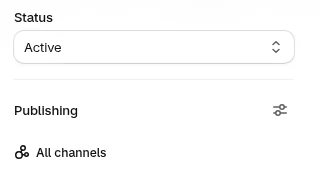
Check that Status is Active, then click Save. Shopify shows "Product created". After saving, the Publishing card reads All channels, which includes the Online Store.
Leave the real price on it. The discount takes it to $0 only when the rules are met, and the cart shows the original price struck through, which is the part that makes a gift feel like a gift.
2. Start a Buy X get Y automatic discount
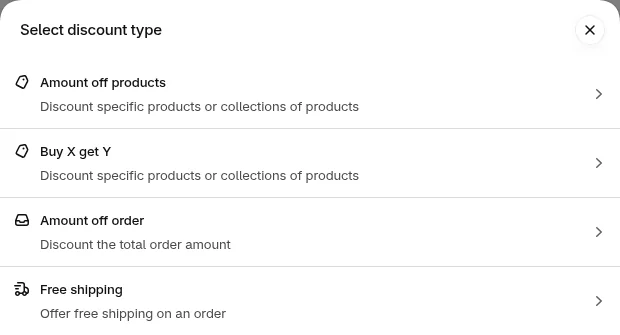
Go to Discounts and click Create discount. In the Select discount type window, choose Buy X get Y.
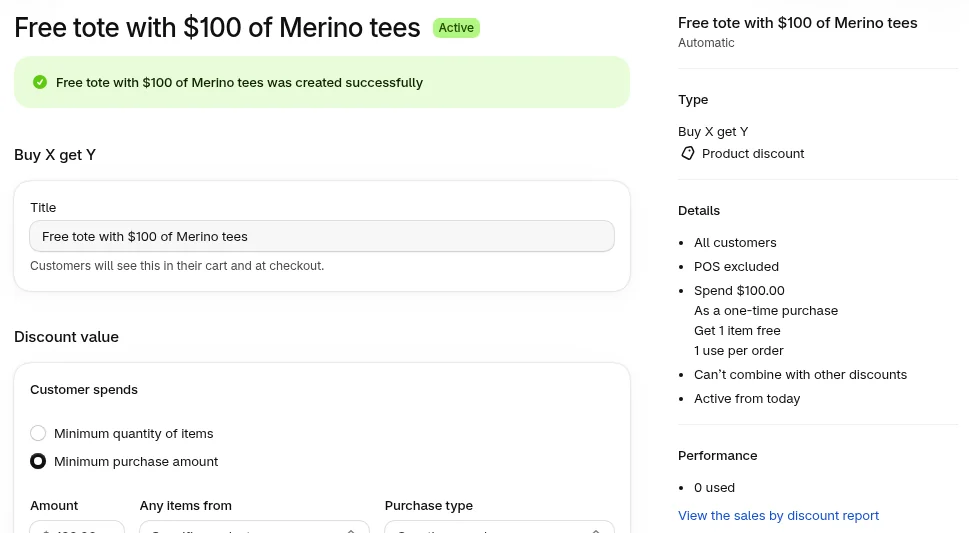
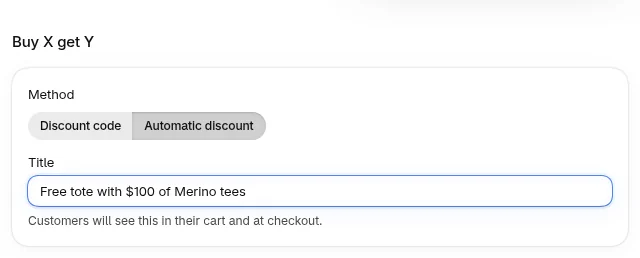
At the top of the form, under Method, choose Automatic discount (not Discount code, which makes the shopper type something in). Name it Free tote with $100 of Merino tees. Shopify's help text under the title says customers will see it in their cart and at checkout, so write it in words they'd understand.
3. Set what the customer has to spend
In the Discount value card, the first part starts as Customer buys. Choose Minimum purchase amount and the heading changes to Customer spends. Enter 100. Under Any items from, choose Specific products, click Browse and add Merino Crew Tee.
Keep the gift out of this list. Shopify counts products in this section towards the minimum, so if the tote is in there, shoppers could reach $100 partly with the tote itself. The minimum counts product prices at full price before other discounts, and it never includes shipping or tax. If another discount that can combine has already been applied to an item, that item doesn't count towards the minimum at all.
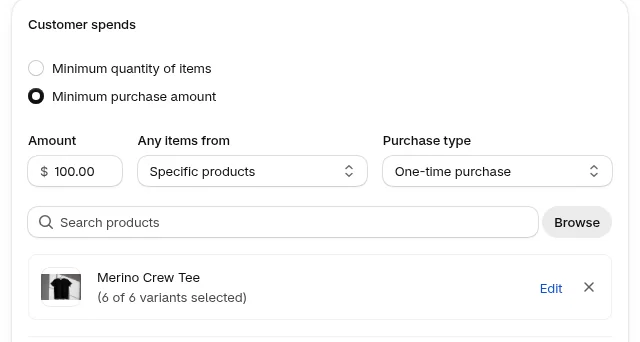
If you'd rather reward a quantity than a spend, choose Minimum quantity of items instead, for example "buy 2 tees".
4. Choose the gift
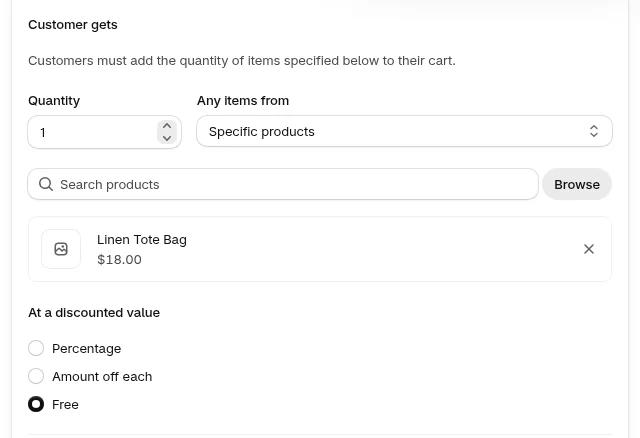
Under Customer gets, set the quantity to 1, choose Specific products and add Linen Tote Bag. Under At a discounted value, choose Free. The only hint on the form is "Customers must add the quantity of items specified below to their cart." Keep that in mind for step 6.
5. Set the limits and the dates, then save
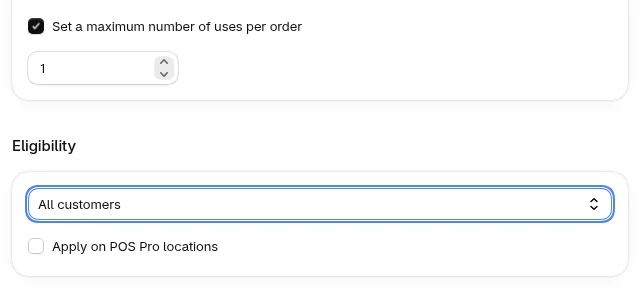
Tick Set a maximum number of uses per order and enter 1, so an order of four tees still gets one tote. Leave Eligibility on All customers.
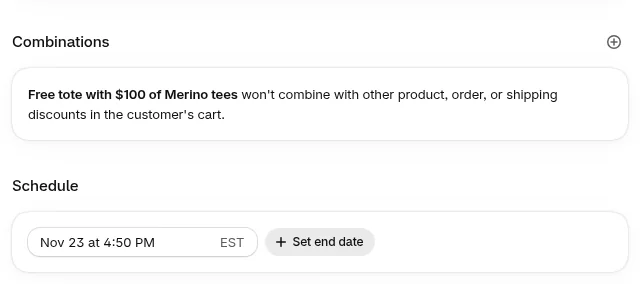
Next, look at Combinations. All the boxes are off by default, so this offer won't combine with other product, order or shipping discounts until you tick them. The Schedule card starts the discount now, in your store's time zone. Click Set end date if it's for a campaign. Then click Save. Shopify shows "Discount created".
The saved discount's page describes the rules in plain words on the right, and shows the status as Active. Read that summary against what you meant to set up.
6. Tell shoppers to add the gift
This is the step people skip. Shopify never adds the gift to the cart for the shopper. A shopper who spends $118 on tees and never touches the tote gets no tote and no discount. The offer only works if they know they have to add it.
Put the instruction where the shopper already is. Our test store runs Dawn, so these steps are for Dawn. In Online Store > Themes, click the ... menu on your live theme and choose Duplicate. Open the copy with Customize. In the left sidebar, open Header > Announcement bar, select the block called Announcement, and edit its Text field: "Spend $100 on Merino tees and add a Linen Tote Bag. It's free." Click Save. Other themes, Horizon included, may name these sections differently, so look for the announcement bar in the header area.
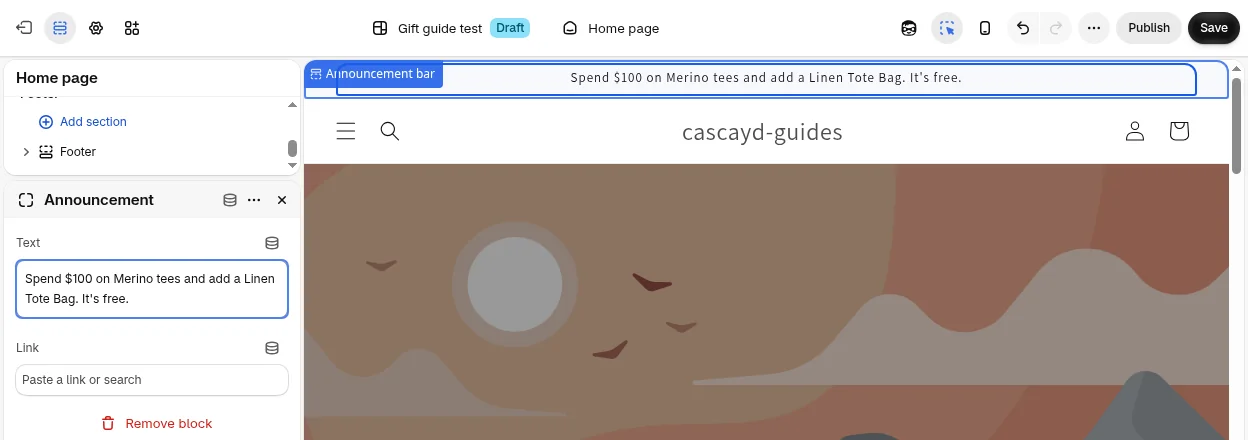
The same line works on the product page, near the Add to cart button, and in the cart. Don't publish the copy until you've looked at it on a phone.
7. Test it in a real cart
Open your store in a private window and add one Merino Crew Tee and the Linen Tote Bag. The tote should still be $18. The offer hasn't been met, because $59 is under $100. In our theme, Add to cart opens a small notification, and it shows no discounts. The discount shows on the cart page.
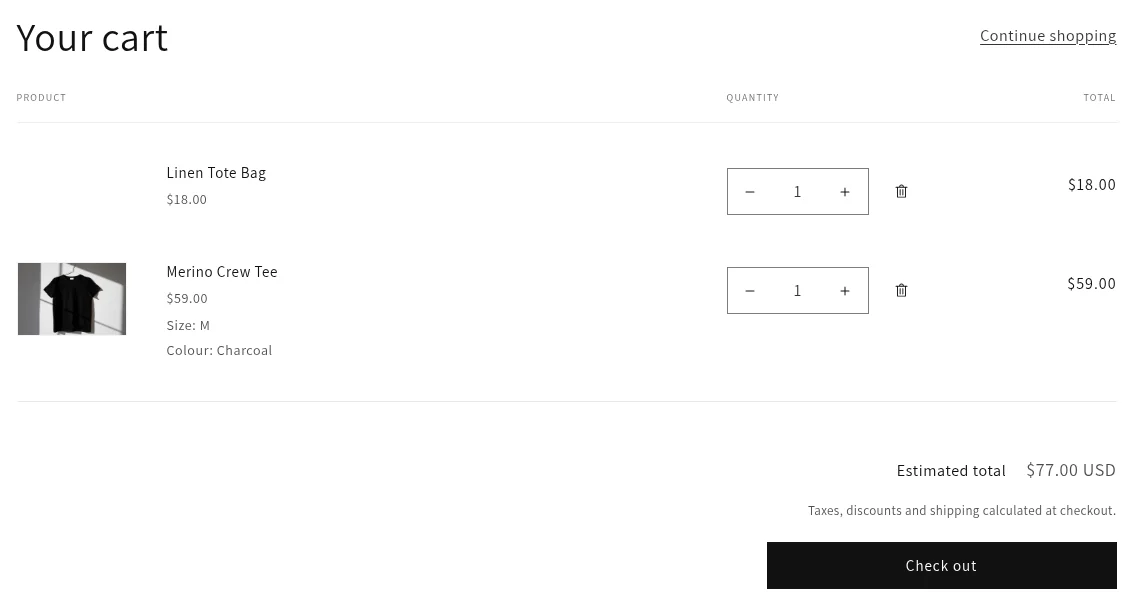
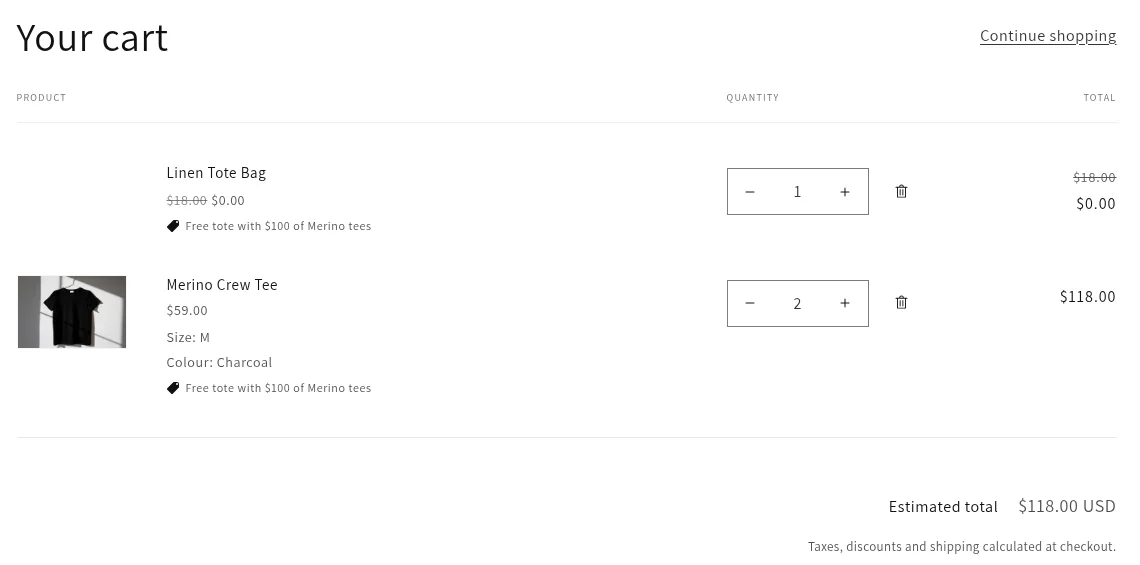
Change the tee quantity to 2. The cart updates without reloading the page. The tees are now $118, and the tote shows $18.00 struck through and $0.00. The cart has no separate discount line. The discount name appears as a tag under the tote and under the tees.
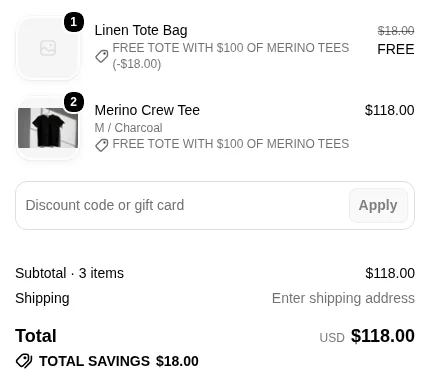
Click Check out and look at the order summary. The tote shows FREE with the original $18.00 struck through, the discount name sits under it with (-$18.00), and the bottom of the summary reads TOTAL SAVINGS $18.00. Don't type anything into the checkout form. Check the order summary and close the tab.
Then check the edge cases before you tell anyone. We ran these on our test store:
- One tee and a tote. Take a tee out and the tote goes back to $18.00 and the discount tags disappear.
- Four tees and two totes, with the limit on 1. One tote is free and the second is full price.
- The tote on its own. Full price.
- Four tees and two totes, with the limit left blank. Both totes are free. That's why step 5 sets the limit.
Check how it's doing
The saved discount's page has a Performance block that shows how many times it has been used. Its "View the sales by discount report" link takes you to Analytics > Reports. Search the list for "discount" and you'll find Sales by discount codes and Discounts by order. We didn't find a report named exactly "Sales by discount", so check which of the two shows an automatic discount in your store.

What Shopify's free gift doesn't do
- No auto-add. The tote stays out of the cart until the shopper adds it. Apps can auto-add the gift. Whether you want one is a separate decision, and it's an app install.
- It's a real product. It can sell out, and shoppers can also buy it on its own at full price.
- Not on the post-purchase page. Buy X get Y discounts created in the admin don't apply to Shopify's post-purchase page at checkout.
- Combining. Check Combinations against any other automatic discount, such as a free shipping offer, before you run both.
What to test once the gift is live
A gift offer has two things to test, and they need separate tests. The first is the offer. The second is how it's shown.
The offer. A free $18 tote costs you $6 plus postage. A 10% discount on a $118 order costs you $11.80. Which one makes more profit per visitor depends on your shoppers, and you only find out by running both. Bundle pricing uses the same maths for a bundle discount.
How it's shown. The announcement bar, the line on the product page and the line in the cart all tell the shopper to add the gift. A gift photo next to the Add to cart button, in a different wording, or in the cart only, are three different page tests, with the discount rules the same on every version. Judge each on revenue per visitor, and count the gift's cost in the profit. The free shipping threshold guide and the AOV post use the same approach for other order-value offers.
That's what we do: our team researches your store, designs tests for how your offers are shown on the product page and in the cart, and measures each one on real Shopify orders. AI speeds up the build, and you approve every test in Slack. We only charge when you make money. If you're curious whether your traffic can deliver good testing results, book a call.