How to offer free shipping on Shopify (rates and discounts)
Offer free shipping on Shopify two ways, step by step: a free shipping rate with a minimum order, or a free shipping discount. Plus how to check it works.

Will O'Brien
Before you start
Pick the number first. A minimum that sits just above your typical order nudges people to add one more thing. One far above it just reads as "shipping isn't free". Our free shipping threshold guide shows how to work that number out from your own orders and margin.
Then decide which tool you need:
| Free shipping rate | Free shipping discount | |
|---|---|---|
| Where | Markets > your market > Shipping (or Settings > Shipping and delivery) | Discounts > Create discount |
| Who gets it | Everyone in that market or shipping zone | All customers, or specific customers, segments or markets |
| Minimum order | Offer free shipping with a Minimum order amount, or an Order amount range priced at $0 | Minimum purchase amount or Minimum quantity of items |
| Which options go free | Only the option you edit (say Standard) | Every option the shopper can pick, Express included, unless you exclude rates over an amount |
| Needs a code | No | Your choice: Discount code or Automatic discount |
| Good for | A permanent "free shipping over $100" | Campaigns, VIPs, first orders, one country only |
A rate is the steady, always-on version. A discount is the one you switch on for a weekend or give to one segment. Shopify applies product discounts first, then order discounts, and shipping discounts last. Only one shipping discount can apply to an order.
Method 1: Free shipping as a shipping rate
1. Check which shipping screen you have
In your Shopify admin, go to Settings > Shipping and delivery. Shopify is gradually moving shipping rates into Markets, which it calls shipping options by market. Stores that have moved show a notice, "Shipping has moved to Markets", and a Shipping options table listing each market and its options. Most stores still use shipping profiles, with zones and rates, until Shopify upgrades them.
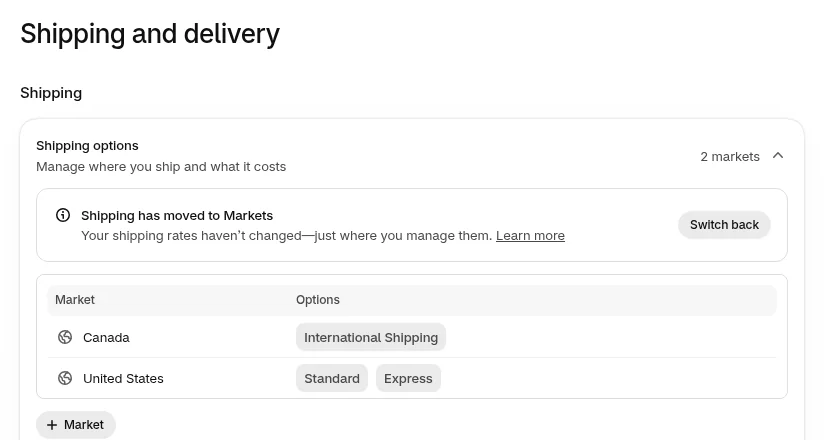
The steps below use the Markets screens. If you still see Shipping profiles, open the profile your products use (usually General shipping rates) and find the zone. A zone does the job a market does here, and each option in it has the same Offer free shipping setting.
2. Open the market's shipping options
Click the market, for example United States. You can also go to Markets, open the market and click Shipping. You'll see every option shoppers in that market can choose, its price, transit time and where it ships from.
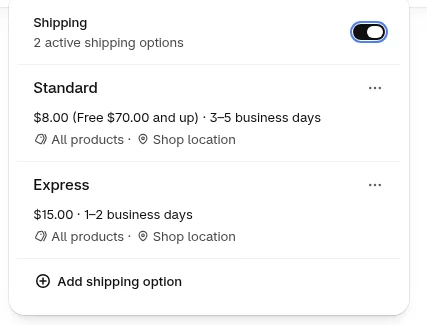
Each market keeps its own options, so free shipping set in United States doesn't cover Canada. Repeat the next step in every market where you want the offer.
3. Free shipping over a minimum order
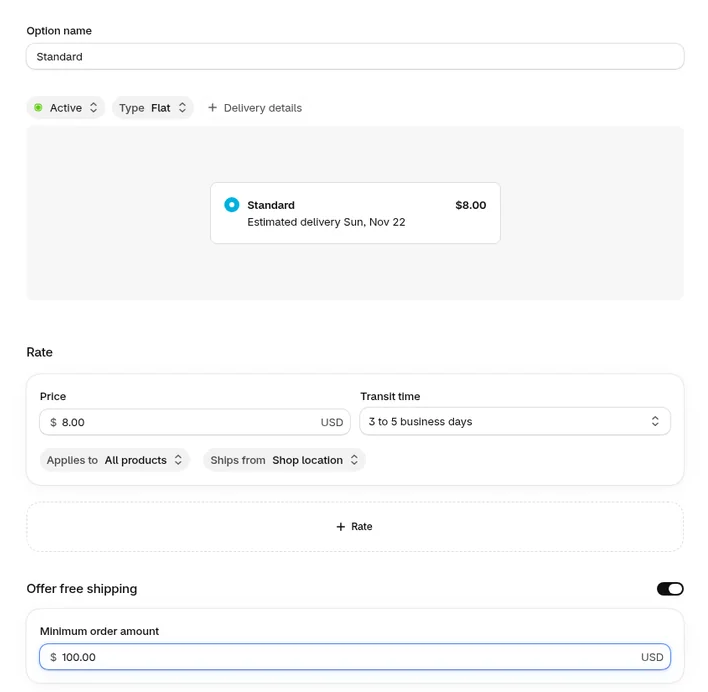
This is the setup most stores want: pay for shipping under $100, free above it. Next to your standard option, click ..., then Edit. Turn on Offer free shipping and enter 100 in Minimum order amount. Click Done, then Save.
Shoppers under $100 pay the normal $8 for Standard. At $100 and above, Standard shows as free. Express keeps its price, because the setting belongs to the option you edited. On the shipping profiles screen, it's ... > Edit shipping option in the zone, then select Offer free shipping and enter the minimum.
4. Free shipping on every order
To ship everything free, click Add shipping option. Enter an Option name customers will see at checkout, like "Free shipping". Leave Type on Flat and set Price to 0.00.
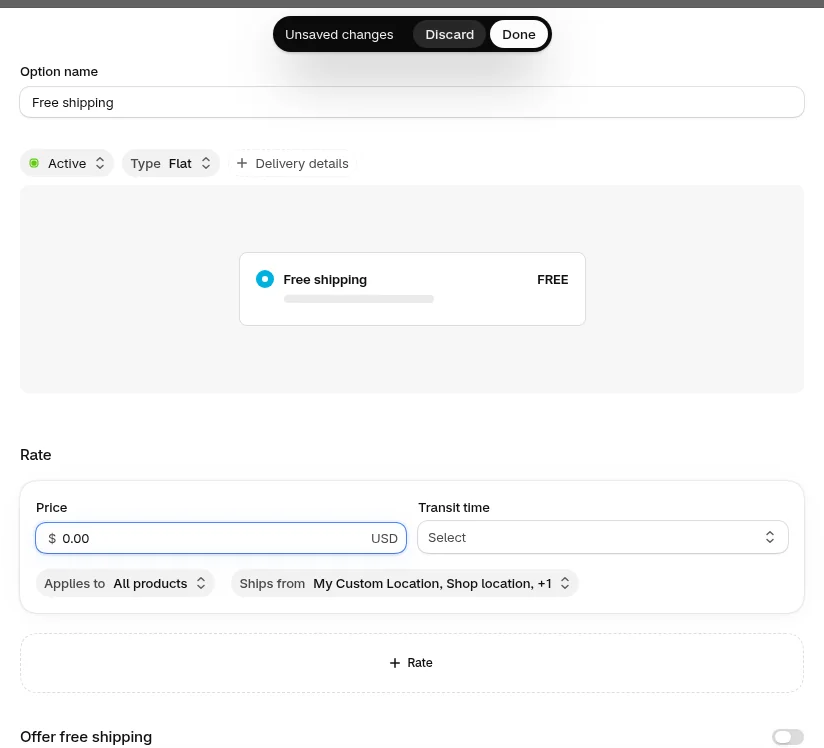
Two fields catch people out. Transit time is required, so pick a range like 3 to 5 business days. Ships from defaults to all your locations, while older options may ship from only one. A rate only shows at checkout if it ships from a location that holds the stock.
When we added a $0 option next to Standard and Express on our test store, a $59 cart showed only the free option at checkout. If you still want shoppers to be able to pay for Express, check checkout after you save.
5. If you use order amount ranges
If your option uses Type: Order amount, you can make the top range free instead. Set the first range to Minimum 0, Maximum 99.99 and your normal Price. Click + Order amount range for the next one, then set Minimum 100, leave Maximum on No limit, and enter 0 in Price.
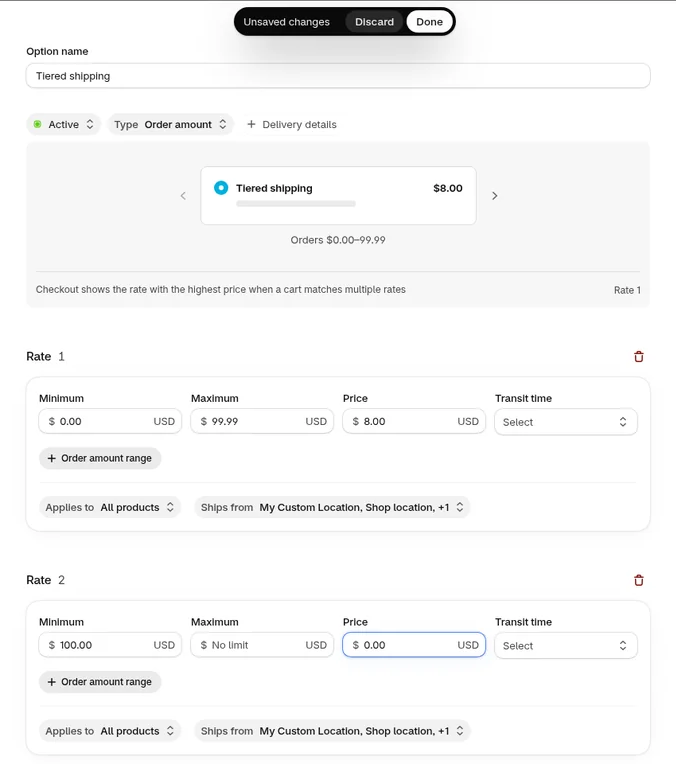
The empty maximum on the top range matters. If an order lands above every range, no rate applies and the shopper gets a shipping error at checkout. Overlapping ranges cause the opposite problem. Shopify charges the highest matching rate, so if the first range had no maximum, a $118 cart would match both and still pay $8.
Method 2: Free shipping as a discount
6. Create a free shipping discount
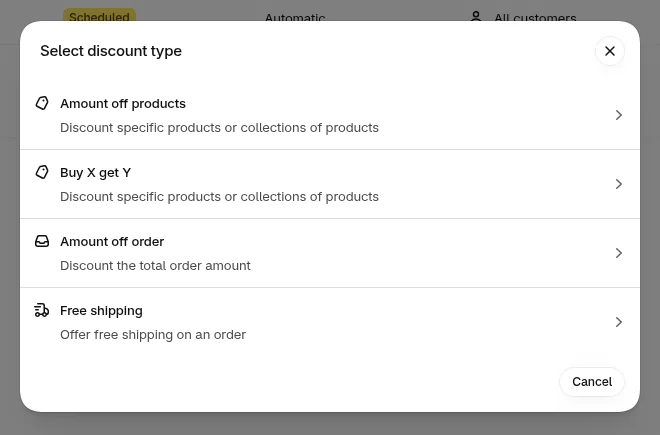
Go to Discounts and click Create discount. In Select discount type, choose Free shipping.
7. Pick a code or automatic, then countries
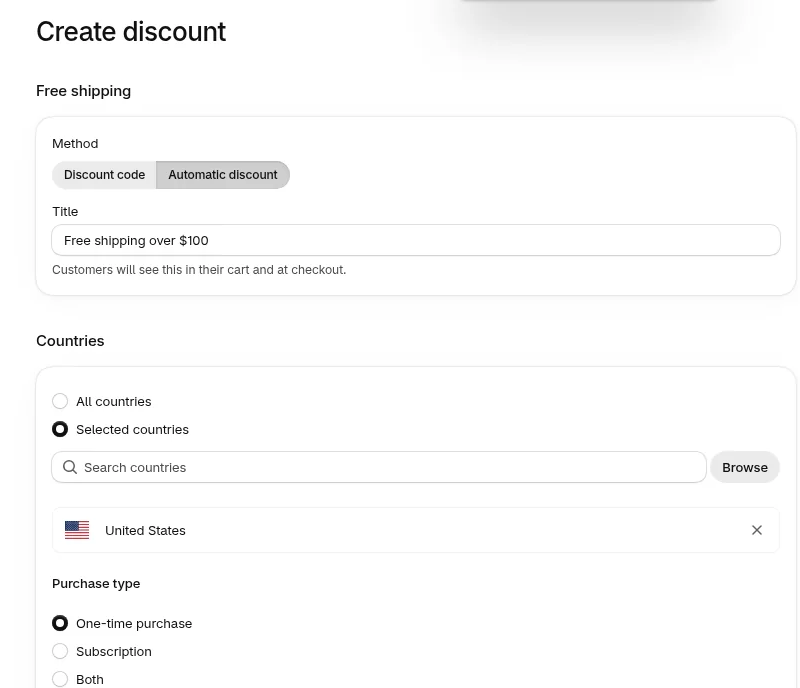
Under Method, choose Automatic discount if everyone who qualifies should get it without typing anything, or Discount code if you're sending it in an email or to one segment. Enter a Title (for an automatic discount) or the code itself, like FREESHIP100. Customers see it in their cart and at checkout.
Under Countries, leave All countries or choose Selected countries and add the ones you'll pay to ship to. If you sell subscriptions, Purchase type sets whether it covers One-time purchase, Subscription or Both.
8. Set the minimum, eligibility and combinations
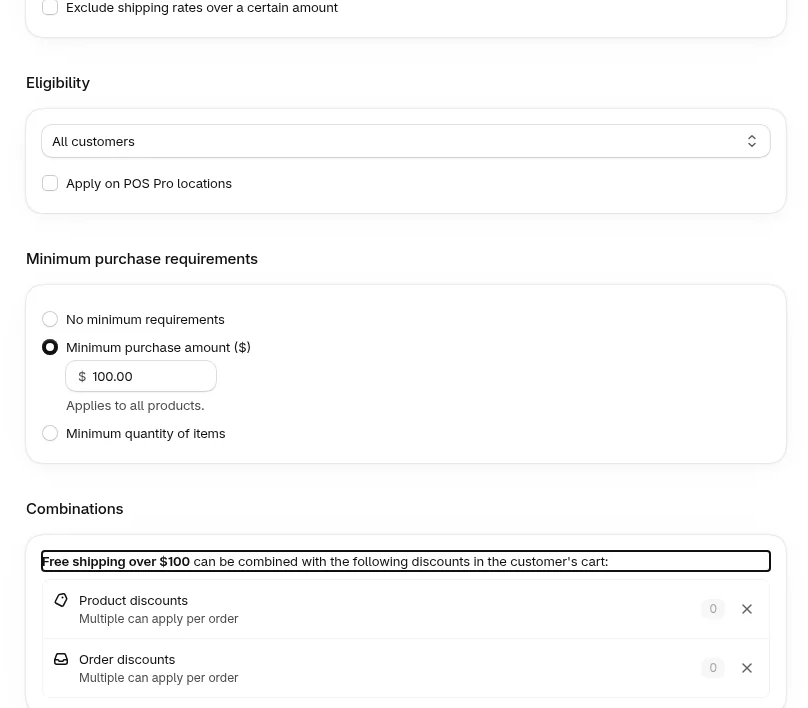
- Shipping rates: tick Exclude shipping rates over a certain amount if the discount shouldn't cover an expensive express rate. Enter the cut-off, like $10, and Express stays paid.
- Eligibility: All customers, or specific customers, segments or markets.
- Minimum purchase requirements: choose Minimum purchase amount ($) and enter 100, or Minimum quantity of items.
- Combinations: open the section and tick Product discounts and Order discounts if a shopper using
SAVE10should still get free shipping. - Schedule: set a start date, and tick Set end date if it's a campaign.
Click Save.
The minimum counts product prices only, never taxes or shipping. Products count at their discounted price when another discount can combine with this one. A $105 cart with a combinable 10% product discount counts as $94.50, so it misses a $100 minimum.
Tell shoppers before checkout
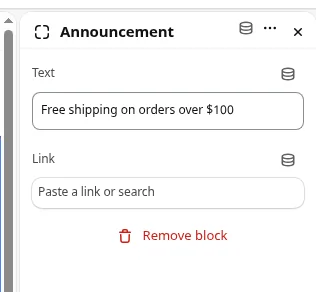
Free shipping nobody sees until the last step doesn't change what goes in the cart. Go to Online Store > Themes, duplicate your live theme, and click Customize on the copy. In Dawn and most free themes, open Announcement bar in the header, click the Announcement block and type "Free shipping on orders over $100" in Text. Add a Link to a collection if you like. Save, check it, then publish the copy.
The product page and cart are where people decide whether to add the second item, so say it there too where your theme lets you.
Check it at checkout
Open your store in a private window. Add one product under your minimum, go to checkout and enter an address in the market you edited. Shoppers don't see any rates until they enter an address. Note the shipping price, then go back, add enough to cross the minimum and check again. You don't need to place an order.
Here's what our test store showed with Offer free shipping on Standard and the automatic discount both live.
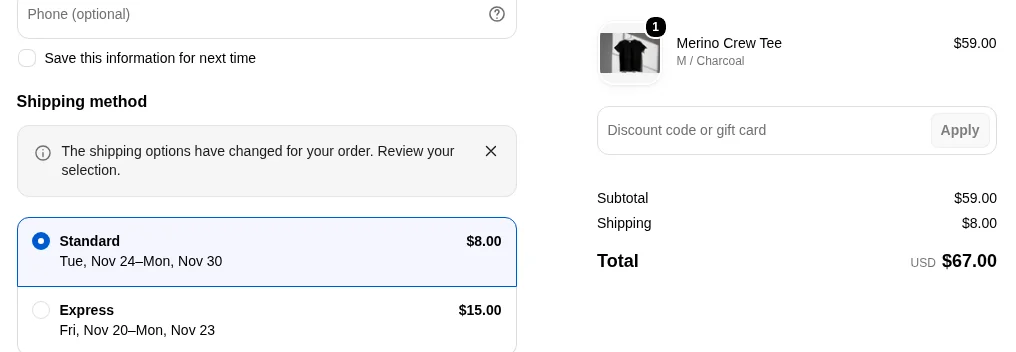
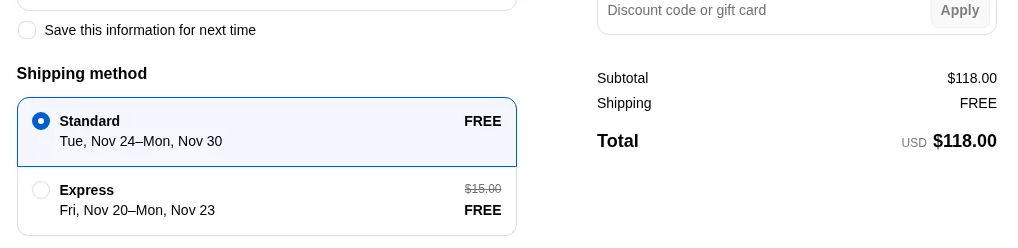
The discount doesn't add its own line to the order summary. It shows as the struck-through $15.00 on Express. When we switched the discount off, Standard stayed free (that came from the rate) and Express went back to $15. If you only want Standard to be free, set it on the shipping rate and leave the discount off.
Then try the edge cases your customers will find for you: a cart right at the minimum, a cart that crosses it only before a discount code, and an address in another market.
Find out if it pays
Free shipping over a minimum works when enough shoppers add the extra item and the margin on it covers the postage you now pay. Compare average order value and orders per session for the four weeks before and after, and keep an eye on the share of orders sitting just above the line.
A before and after comparison mixes in everything else that changed that month. Testing the threshold itself, or the way the cart shows it, splits the same traffic and answers it properly, and the confidence interval tells you the range of lift the result supports.
That's what we do: Cascayd's team researches your store and designs the tests, AI speeds up the build, and you approve each one in Slack. Every test has its sample size set up front, runs at least two weeks and is judged at 95% significance on revenue per visitor. We only charge when you make money. Book a call.