How to create a Shopify segment of shoppers who abandoned checkout
Build a Shopify segment of shoppers who abandoned checkout, leave out anyone who has ordered, and use it for a discount or email. Real screenshots.

Rishi Babu
Before you start
A checkout counts as abandoned when a shopper gets to checkout, enters an email address, and doesn't pay within ten minutes. Shoppers who leave from the cart, or before typing their email, never show up, because Shopify has no one to attach the checkout to.
A segment is a list of customers, not checkouts. The filter we use, abandoned_checkout_date, is the date each customer most recently abandoned a checkout. It doesn't check whether they've ordered since, which is why step 6 adds an orders filter.
We built this on our own test store, which has one abandoned checkout from a customer called Test Shopper. The screens are the same on every plan.
Step 1: See what Shopify already has
1. Check your abandoned checkouts
Go to Orders > Abandoned checkouts. Each row is one checkout, with the customer, whether a recovery email went out, and whether it was recovered. If this list is empty, any segment you build will be empty too.
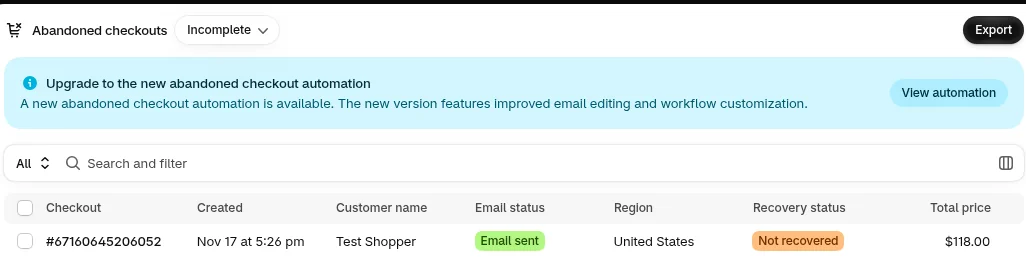
Shopify deletes abandoned checkouts from this page after three months, so don't rely on it as a long-term record.
2. Open the built-in segment
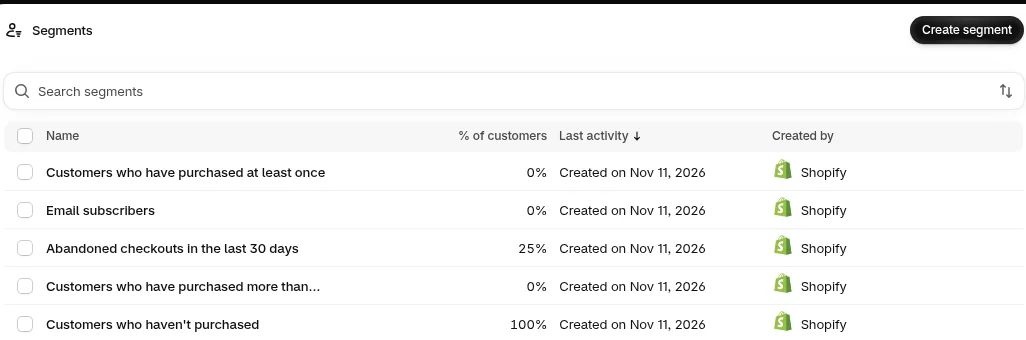
Go to Customers > Segments. Shopify adds a few segments to every store, and one of them is Abandoned checkouts in the last 30 days.
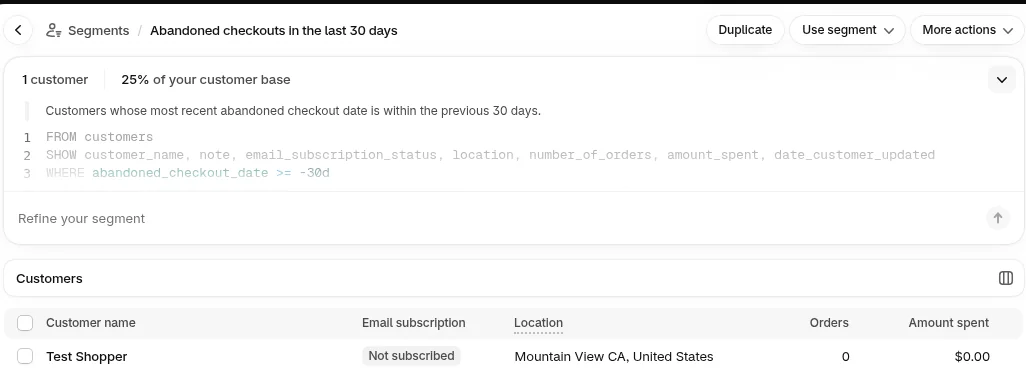
Click it. The top shows the count, the share of your customers, and the query: abandoned_checkout_date >= -30d. If 30 days and everyone is what you want, you can stop here and go to step 9.
Step 2: Build your own segment
3. Create a segment and open the editor
Go back to Segments and click Create segment. You'll see a box that says Describe your segment. Click the small arrow on its right to open the query editor.
The first two lines (FROM customers and SHOW ...) are locked. You only type after WHERE.
4. Add the abandoned checkout filter
Click after WHERE and start typing abandoned. Shopify suggests abandoned_checkout_date, described as the date the customer most recently abandoned a cart. Pick it.

5. Choose the window and run it
Type a space and >=. Shopify offers some dates: today, yesterday, -7d, -30d and -90d. You can type any number of days, so we used -14d:
abandoned_checkout_date >= -14d
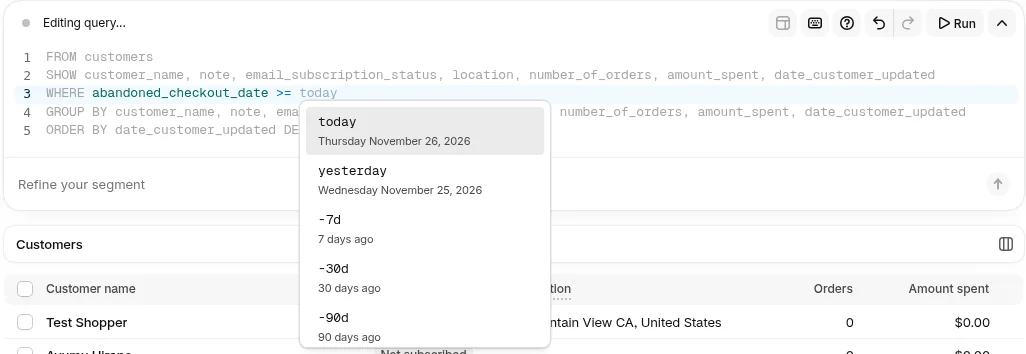
Click Run (or press Ctrl+Enter). Shopify tidies the query, writes a plain-English description above it, and lists the matching customers below. Dates count in whole days in your store's time zone.
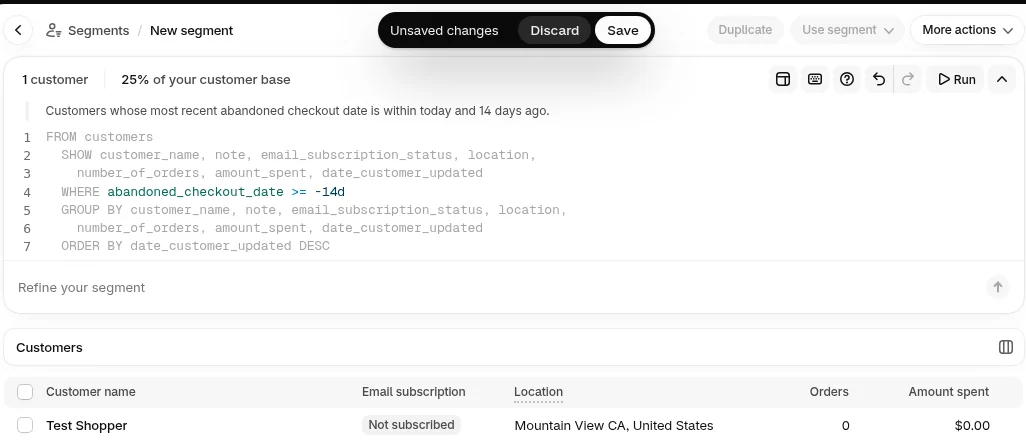
Why 14 days? Shopify's automatic recovery email goes out within hours of the abandon (ours is set to 10 hours). A 14 day window catches the people that email didn't bring back, while the cart is still fresh in their head. Pick what fits your buying cycle: a $40 candle store might use 7 days, a $1,200 mattress brand 30 or more.
6. Leave out people who have already bought
On the end of the WHERE line, add:
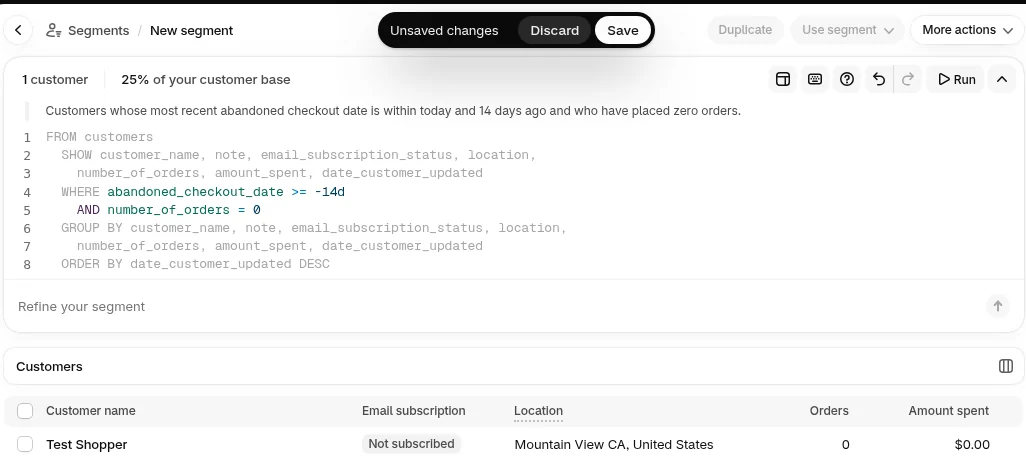
AND number_of_orders = 0
Click Run again. This keeps the segment to shoppers who have never ordered from you, so a regular who abandoned a second basket and then bought doesn't get a "come back" offer.
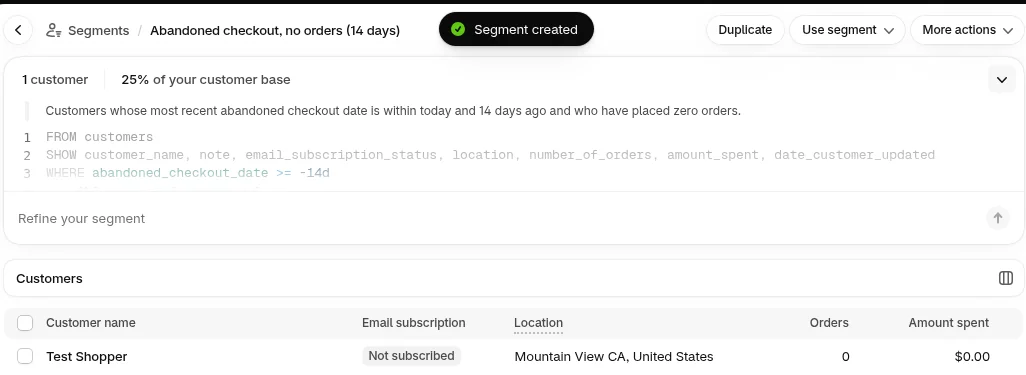
That's the query in the screenshot at the top of this guide. Our count stayed at 1, because Test Shopper has no orders.
If you want returning customers too, use the last order date instead, so you keep anyone who hasn't ordered within the window:
abandoned_checkout_date >= -14d AND last_order_date < -14d
Both filters are in Shopify's filter reference. Our test store has no returning customers, so we only ran the first version.
7. Check how many you can email
If you plan to email the segment, add one more line and run it:
AND email_subscription_status = 'SUBSCRIBED'
On our store the count dropped to 0, because Test Shopper never ticked the marketing box. That's worth knowing before you plan a campaign: marketing emails only go to subscribed customers, so the discount route in step 9 often reaches more people.
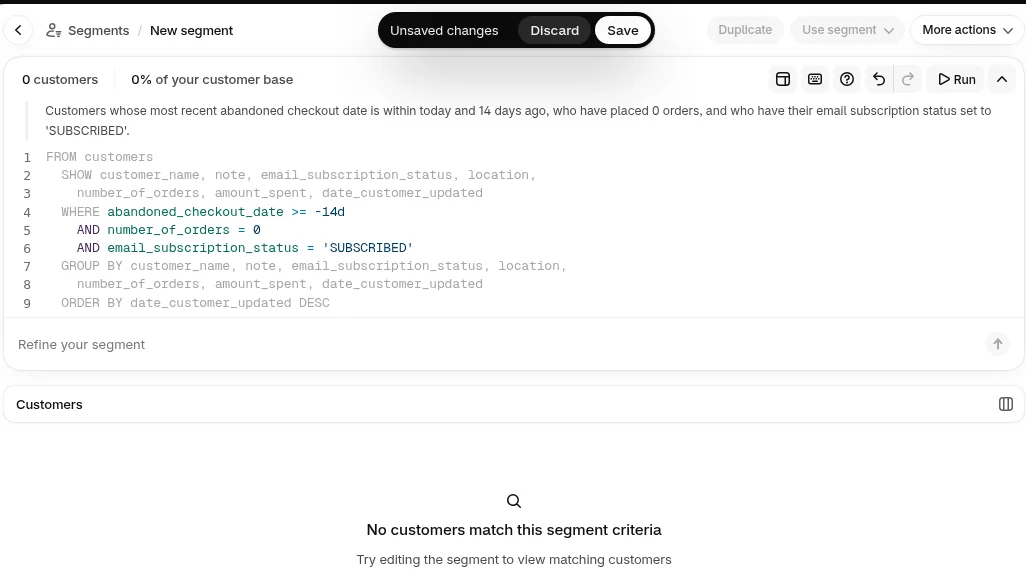
We took that line back out before saving, so the segment can still be used for a discount.
8. Save and name it
Click Save at the top. In Save as new segment, type a name that says what's in it, then click Save. We used "Abandoned checkout, no orders (14 days)".
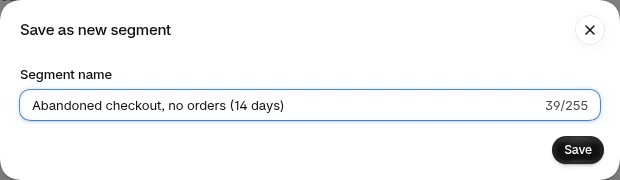
You'll see Segment created. The segment updates by itself: someone who abandons tomorrow joins it, and someone whose abandoned date passes 14 days drops out.
Step 3: Use the segment
9. Give the segment its own discount
On the saved segment, click Use segment and choose Apply discount.

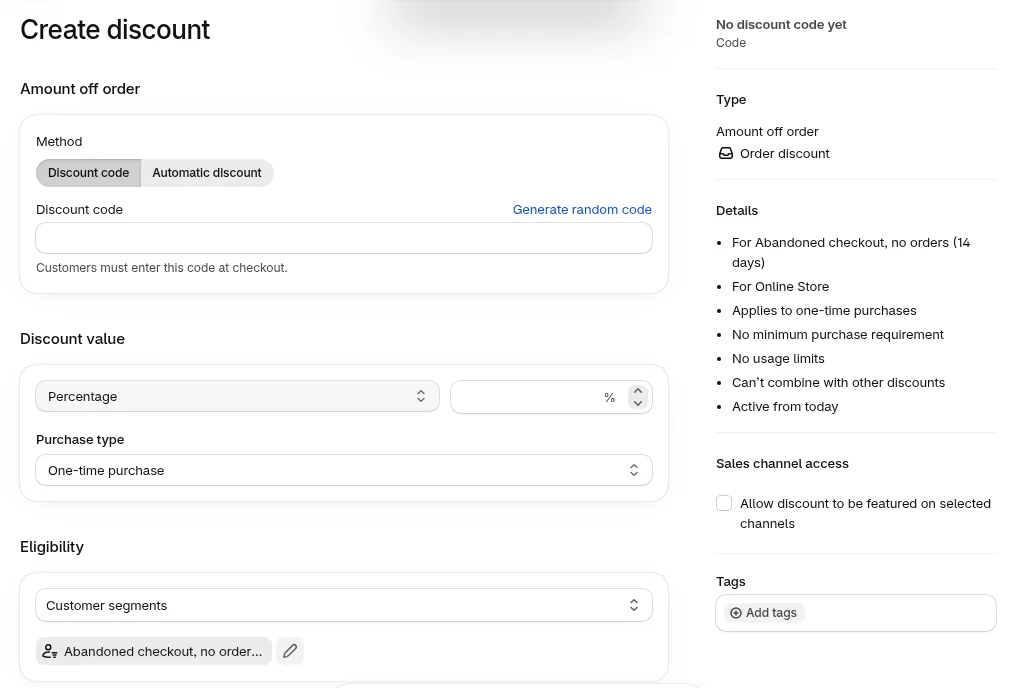
Pick a discount type, such as Amount off order. Shopify opens the discount form with Eligibility already set to Customer segments and your segment added, and the summary on the right reads "For Abandoned checkout, no orders (14 days)". Only customers in the segment can use the code. Set the code, value and dates, then save.
The abandoned cart discount guide shows how to put a code like this into Shopify's automatic recovery email.
10. Or send the segment an email
Click Use segment > Email segment. Shopify Messaging opens its templates. Pick one, or click Create from scratch, and the email's To field already holds your segment. Next to it, Subscriber count tells you how many people will actually get it.

The email starts as a draft. Nothing sends until you click Review and schedule or send it. We deleted ours.
If you're done with a segment, More actions > Delete removes it. Shopify confirms that no customer profiles are deleted, only the segment.
Which query to use
| You want | Query after WHERE |
|---|---|
| Everyone who abandoned in the last week | abandoned_checkout_date >= -7d |
| Never-ordered shoppers from the last 14 days | abandoned_checkout_date >= -14d AND number_of_orders = 0 |
| The same, only people you can email | abandoned_checkout_date >= -14d AND number_of_orders = 0 AND email_subscription_status = 'SUBSCRIBED' |
| Returning customers who abandoned and haven't ordered since | abandoned_checkout_date >= -14d AND last_order_date < -14d |
| Anyone who has ever abandoned a checkout | abandoned_checkout_date IS NOT NULL |
Fix the reason before you send the offer
A segment like this tells you who left. It doesn't tell you why. And if every one of them gets 10% off, your regulars soon learn that leaving checkout earns a code. Before you lean on a discount, look at where they stopped. The checkout conversion rate guide shows how to read that drop in Shopify, and the cart abandonment rate formula explains the cart side.
Reasons like a shipping cost that only appears at checkout, or a delivery date that's too slow, can often be fixed on the product page and cart for every visitor, not only the ones who left. Those are the changes worth A/B testing, judged on revenue per visitor, with the recovery email left running the same for both groups.
That's what we do: our team researches your store, designs page content and offer tests, and measures each one on real Shopify orders. AI speeds up the build and you approve every test in Slack. We only charge when you make money. If you want a second pair of eyes on why shoppers leave your checkout, book a call.