How to use Shopify's search engine listing preview
Edit Shopify's Search engine listing on a product, collection, page or the homepage. Real admin screenshots, character limits and URL redirects.

Rishi Babu
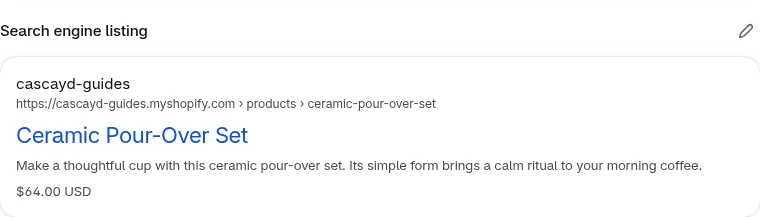
Edit the Search engine listing on a product
The section lives on the product itself, not in the theme editor.
Step 1: Open the product
From your Shopify admin, go to Products, then click the product you want to edit. We'll use a Ceramic Pour-Over Set, priced at $64, as the example.
Step 2: Find Search engine listing
Scroll down the product page until you see the Search engine listing section. Shopify already shows a preview here: your store name, the product URL, a blue title, a short description, and, on a product, the price.
If you have never touched this section, the title is usually the product title, and the description is usually taken from the product description. That is fine as a starting point. It is often shorter, or vaguer, than you would write if you were trying to earn the click.
Step 3: Click the pencil to edit
The control is a pencil in the top right of the section. Its accessible name is Edit. Click it, and three fields appear under the preview: Page title, Meta description, and URL handle.
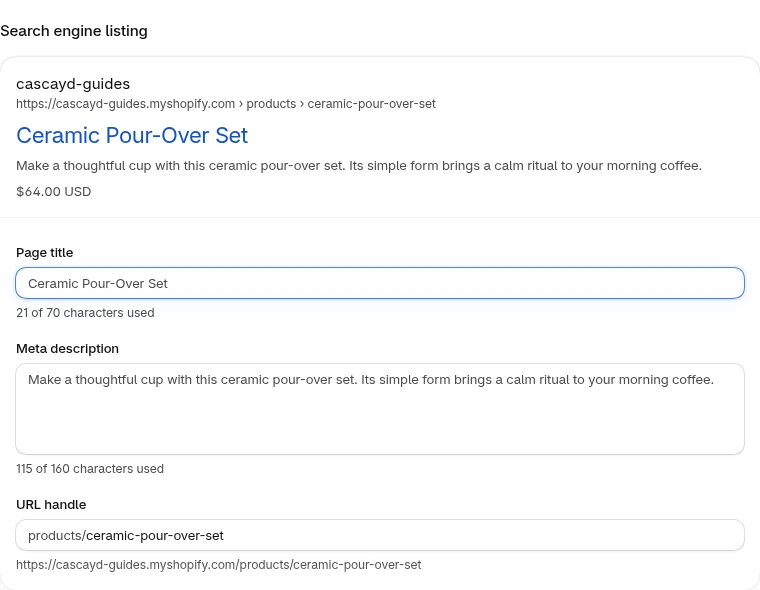
This Page title is not the product Title at the top of the editor. The Title at the top is the heading on your product page. The Page title in this section is what search engines are offered for the result. Changing one does not rename the other.
Step 4: Write the title and description, then watch the preview
Type in Page title and Meta description. The preview at the top of the section updates as you type.
The counters sit under each field: 21 of 70 characters used, 115 of 160 characters used. Those 70 and 160 numbers are the limits Shopify is counting to in the admin for products, collections and pages. Shopify's own SEO guidance is to keep the title around 60 characters, because search engines often shorten a longer one. You can type past the counter. It does not stop you. On this product, a 90-character title and a 223-character description were accepted, and the preview cut both with an ellipsis.
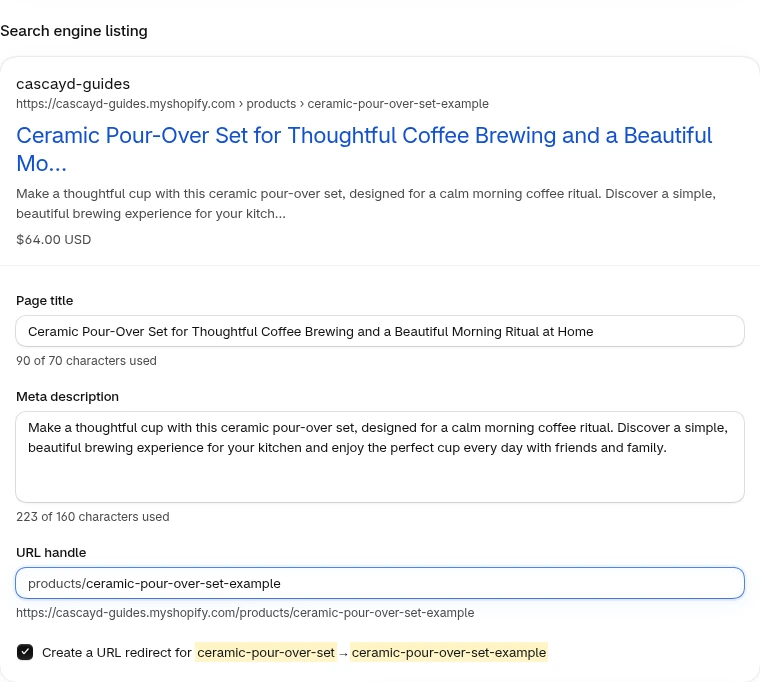
A tighter title for this product would keep the thing someone is searching for at the front, and a concrete detail after it, inside that 60-character comfort zone. Something like "Ceramic Pour-Over Set, 2-Cup Coffee Brewer" does that. A description can add the reason to click: size, material, who it is for, or a delivery detail you actually offer. Skip a list of keywords.
Leave URL handle as it is unless you have a reason to change the web address. The field shows the prefix, such as products/, and the full URL underneath. More on handles in a later section.
Step 5: Save
Click Save on the product. The listing is stored on the product. It does not need a theme publish.
Collections and pages use the same section
Collections and pages have the same Search engine listing section, with the same Page title (70), Meta description (160) and URL handle fields. The handle prefix changes: collections/ for a collection, pages/ for a page.
On a collection, the control is a visible Edit button rather than a pencil, and it turns into Done once the fields are open. On a page, it is the same pencil as on a product.
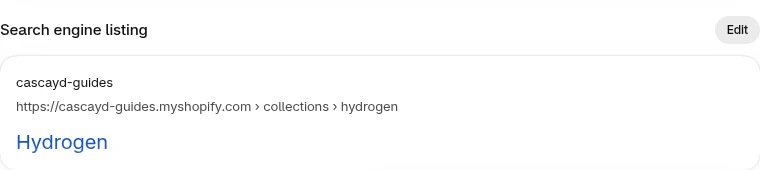
Empty meta descriptions are common on collections and pages. This collection's counter sat at 0 of 160 characters used, and the preview had a title and a URL, but no description line. If you only have time for a few, fill the collections and pages that already get search traffic, then the ones you care about most.
One quirk of the preview: when we passed the limits on this collection, a title at 80 of 70 wrapped onto a second line instead of being cut, and the long description stayed visible. The same overflow on the product and on a Contact page was cut with an ellipsis. Treat the preview as a guide. Google will make its own choice about length.
The homepage lives under Preferences
The homepage is not a product, collection or page, so it has no Search engine listing section of that name. Its fields are at Online Store > Preferences, in Social sharing image and SEO.
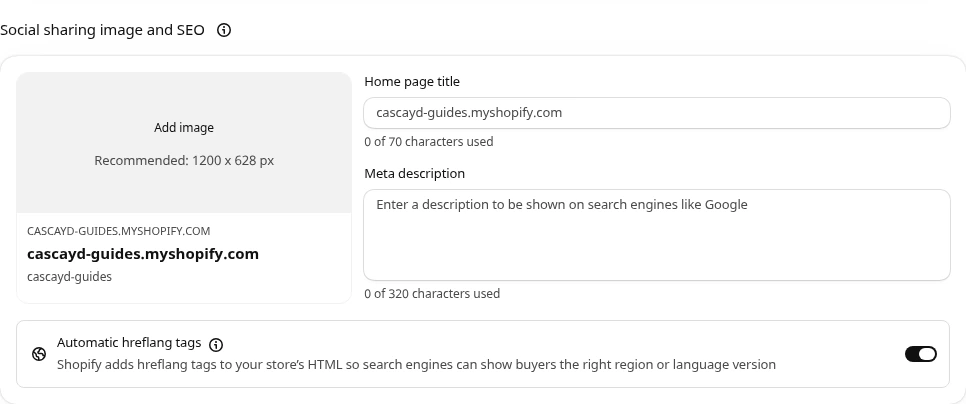
The labels are slightly different:
- Home page title, counted to 70 characters. A domain that looks typed in can still be a placeholder. If the counter says 0 of 70 characters used, nothing is saved yet.
- Meta description, counted to 320 characters, not 160. The placeholder reads: "Enter a description to be shown on search engines like Google".
- Add image, recommended at 1200 x 628 px, for the picture used when the homepage is shared.
On the same screen is Automatic hreflang tags, with the explanation "Shopify adds hreflang tags to your store's HTML so search engines can show buyers the right region or language version". If you sell in more than one market or language, that toggle is the one to know about. It is separate from the title and description.
Click Save on the Preferences page when you are done.
If you change the URL handle
Shopify generates a handle from the title when you create the item. You rarely need to change it. Shopify's product documentation also warns that changing a handle too often can make the product harder for search engines to keep track of.
When you do edit the handle, Shopify offers a checkbox: Create a URL redirect for the old handle to the new one. It is ticked by default. Leave it ticked, so anyone (and any search result) still using the old address lands on the new one.
The handle cannot contain spaces. Use dashes between words. You only edit the last part; the products/, collections/ or pages/ prefix stays.
After you save
Two things are worth knowing, both from Shopify's own SEO guidance.
Google can rewrite your title or description. A listing that looks right in the admin preview can still show different text in search results. To check that your store is outputting what you saved, open the live page, view the page source, and look for the <title> tag and the meta description near the top. If those match what you entered, your store is doing its job, and any difference in Google is Google's choice.
Updates can take days or a few weeks to appear in search results. You can ask Google to recrawl a page with the URL Inspection tool in Search Console. That still is not instant.
A short pass you can do after editing:
Make the page fit the listing
A clearer title and description are a click-through question first. They can bring you more of the traffic you want, or more of the traffic you do not, if the listing oversells what the page actually is. If someone clicks "Ceramic Pour-Over Set, 2-Cup Coffee Brewer" and the product page buries the size, or leads with a different story, they leave, and bounce rate goes up.
The listing and the page have to fit. Once you have written the title, the thing to test is not a new title. It is whether the page delivers on that title: the heading, the photos, the first lines of the description, the details the listing promised.
A clean test:
- Control: your current product page, with the Search engine listing left as it is.
- Variant: the same listing, and page content that makes good on it, so the heading, images and copy actually show what the title said.
- Who: shoppers who arrive on that page from search.
- Hypothesis: people who clicked the listing will buy more often when the page matches what they were promised, so revenue per visitor goes up.
Set the rules before it starts:
The Shopify product page optimization guide has more to test on the page itself.
This is the kind of test Cascayd runs for Shopify stores. Our team does the research, the strategy and the creative design, and AI speeds up the build and the grunt work. Each test comes to you in Slack with the reasoning, and you approve it before it runs. We only charge when you make money. If you want your product pages tested and judged on revenue, book a call.